
Last Updated on February 20, 2026
Before we begin with the causes and solutions for QuickBooks error 1638, let’s learn more about this error.
It appears when the user installs a different version of QuickBooks on the same computer where QB is already installed. An error message usually appears on their screen:
| “An older version of this application is already installed on your device.” |
Let us look at what leads to this error and how to resolve it.
Factors Leading to Error Code 1638 in QuickBooks Desktop
However, multiple reasons exist for this error when working on QuickBooks and encountering error 1638. It is essential to understand them for accurate troubleshooting. For that, go through the pointers below:
- Despite having a QB version, users try to install another version of QuickBooks.
- Malware and virus files are in the system.
- The QB Desktop is not correctly installed in the system.
- While installing the files, the source was damaged or corrupted.
- Moreover, the Firewall settings are blocking QuickBooks.
After discussing the reasons behind this issue, let’s move toward the next section to learn how to troubleshoot it.
Also See: Facing issues installing QuickBooks Desktop? Learn how to Fix Can’t Install QuickBooks Desktop errors and complete your installation smoothly to start managing your accounting and finances without interruptions.
4 Practical Methods to Eliminate QuickBooks Error 1638
After you understand the possible causes of this error, let’s look into the solutions and how to resolve the irritating issues.
Method 1: Find your QuickBooks version
Here are the steps to learn which QB Desktop version is installed on your system.
- Tap the Windows + R keys to launch the Run command.
- In the search bar, type Control Panel and hit Enter.
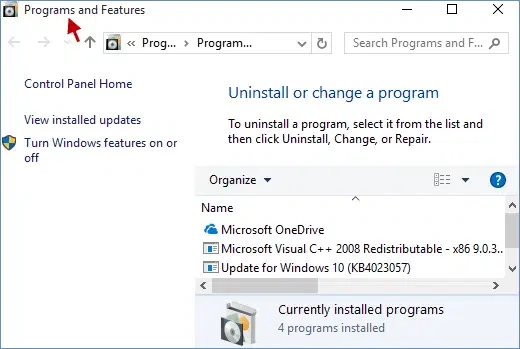
- Select Programs tab > Programs and Features.
- Right-click on the QuickBooks icon.
- Select the correct QB version.
- If QuickBooks still doesn’t open, try to repair the QB
Besides, checking for the QB Desktop version, you can use the Diagnostic Tool to fix it.
Method 2: Repair QuickBooks Desktop
Here is the guide to running the Install Diagnostic Tool for installation issues. Install QuickBooks Tool Hub on your computer and then go through the steps below:
- Open QuickBooks Tool Hub > Installation Issues.
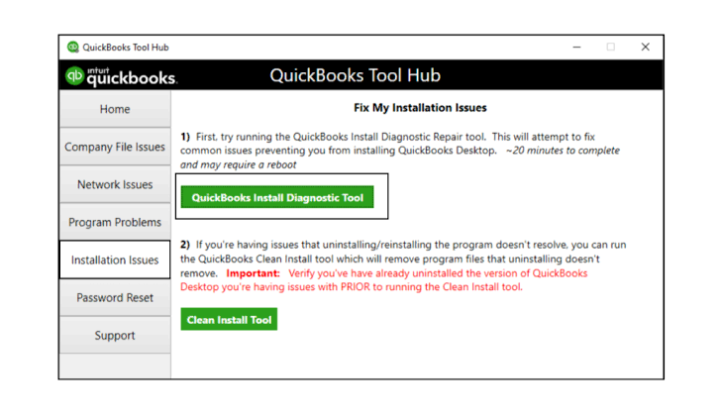
- Choose QuickBooks Install Diagnostic Tool. Wait for the tool to run.
Afterward, when the scan is done, restart your system, open QuickBooks Desktop, and access the company file you are working on.
Step 3: Verify the Restriction Policy
Moreover, the restriction policy for QuickBooks should be verified.
- Click on the Start icon > Control Panel.
- Choose Administrative Tools > Local Protection Settings > select Software Restriction Policies.
- Right-click on the QB in the restriction rule.
- Find New Software Restriction Policy. When enforced, double-click.
- Choose “All Customers Except Community Admins” and click on OK.
- Finally, restart your system
Now, check again whether the QuickBooks error 1638 is resolved. However, if you are still facing the same issue, follow the next method.
Step 4: Clean Install QuickBooks
If the issue continues even after multiple attempts, you may need to manually remove QuickBooks from your system and rename its installation folder. Follow these steps:
- Uninstall the QuickBooks application once again
- Open the Windows Start menu, search for File Explorer, and launch it
- Look for the folder that contains your QuickBooks company files. This folder is usually located in one of the following paths:
- C:\ProgramData\Intuit\QuickBooks (year)
- C:\Users(current user)\AppData\Local\Intuit\QuickBooks (year)
- C:\Program Files\Intuit\QuickBooks (year)
- For 64-bit systems: C:\Program Files (x86)\Intuit\QuickBooks (year)
- Right-click the folder and select Rename
- Add “old” at the end of the folder name. This ensures QuickBooks won’t use it after reinstallation
- Reinstall QuickBooks Desktop
If you’re unable to rename the installation folder due to an error:
- Right-click the Windows Taskbar and open Task Manager
- Go to the Processes tab
- Click the Name column to sort the list for easier navigation
- Select and end the following processes one at a time:
- QBDBMgrN.exe
- QBDBMgr.exe
- QBCFMonitorService.exe
- Qbw32.exe
- If a warning appears stating “Terminating a process can cause undesired results…”, choose Yes to proceed.
After completing these steps, check if the issue has been resolved. These troubleshooting methods should help you successfully eliminate the problem.
A Quick Overview of QuickBooks Error Code 1638
The table below provides a quick, structured overview of the key points discussed, allowing you to review the essential information at a glance.
| Error description | QuickBooks Error 1638 occurs when Windows detects that another version of QuickBooks is already installed on your system. This prevents the new installation or update from proceeding. |
| Possible reasons | Installing duplicate QuickBooks version, system infected with malware, incorrect QuickBooks installation, damaged installation source, or firewall blocking QuickBooks. |
| Proven fixes | Locate the correct QB version, repair QuickBooks software, verify the restriction policy, and clean install QB application. |
Conclusion
In conclusion, we learned about the overall causes and various methods for eliminating QuickBooks error 1638. This issue occurs due to improper installation and corrupted files. If you continue to face the same error even after following the steps above, please speak to a QB professional available 24*7.
Frequently Asked Questions (FAQ’s)
What is QuickBooks error 1638?
These issues arise when installing a different version of the QuickBooks application when the system has a pre-existing version of QuickBooks. Usually, a pop-up message appears saying “An older version of this application is already installed on your device.”
This issue can prevent the user from working on the company files, potentially leading to delays in financial reporting and other business operations.
How can I figure out the Version of my QB Desktop?
To find out what version of QB Desktop you are working on, open QB Desktop and tap on F2 or Ctrl+1 on the keyboard. A pop-up product information window will appear explaining the current version of QB.
What to do when encountering error 1638?
When encountering error 1638, there are multiple precautions to fix this step:
1. Look for the QuickBooks version: Look for the version of QB Desktop you are working with.
2. Repair the QB Desktop: Fix the QB Desktop installation by running the QuickBooks Install Diagnostic Tool.
3. Verify the Restriction Policy: Check the New Software Restriction Policy and modify it if necessary.
4. Cleanly install QuickBooks: Reinstall QB Desktop and launch a clean and updated version.

Kate is a certified public accountant (CPA) with expertise in various accounting software. She is technically inclined and finds passion in helping businesses and self-employed people carry out bookkeeping, payroll, and taxation without worrying about errors. Every once in a while, Kate loves to travel to far-off places and relax in the lap of nature.