
Last Updated on March 30, 2026
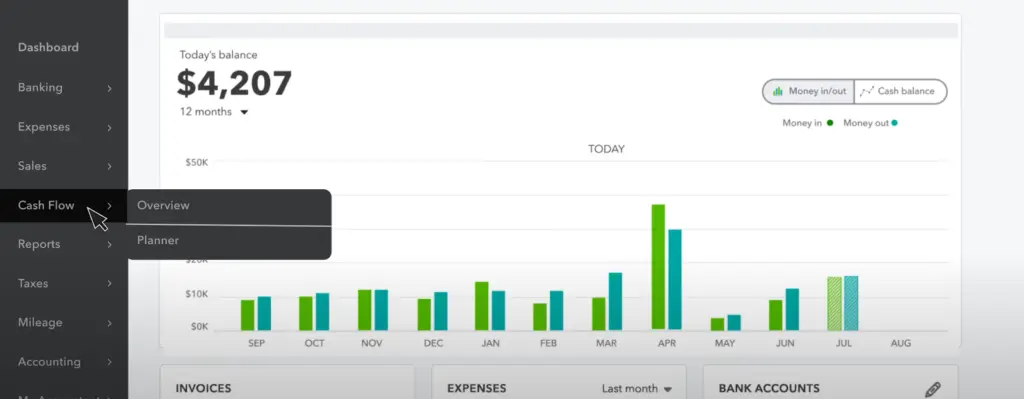
The QuickBooks online forecasting tool helps multiple businesses plan their financial data and improve future performance. QuickBooks Online Advanced uses the cash flow planner to create profit and loss (P&L) forecasts for all versions. The tool further helps to track and manage upcoming cash flow, spot trends, and run the “what-if” scenarios for the budget. This blog is a guide to the tool’s steps and how you can use it for your business.
If you need any help to access the online version of QuickBooks, feel free to get in touch with our experts at +1(855)-510-6487.
Detailed Steps to Use the QuickBooks Online Forecasting Tool
In this section, we will understand a step-by-step process of using the QuickBooks online forecasting tool. The steps will guide you through setting up, customizing, and reviewing the changes.
Make a Forecast:
You can create a forecast for your business when you need to, but it is recommended to do it at the end of the year so that you can plan the next year. Before you start the setup, ensure that you are signed in as an admin with the permissions.
Step 1: Check the Financial Year
- Sign in to the company file.
- Go to the Settings tab.
- Tap on the Account and Settings option.
- Head to the Advanced section.
- From the Accounting section:
- Check and verify the First month of the financial year.
- If it is wrong, tap on Edit to modify it.
- Select the required month from the dropdown menu.
- Tap on Save.
- Lastly, click on Done.
Step 2: Collect the Data for Forecast
This step can be skipped when your financial data is updated. If not, you can build your forecast using the data from the current financial year or the previous. Ensure every detail is accurate, run a Profit and Loss detail report, and review your transactions and accounts. The report shows the current year’s activity by default, but you can customize it to view transactions from previous years.
Step 3: Create Your Forecast
The QuickBooks online forecasting tool can be used to create a forecast for the financial data of your company file. Here are the steps to help you with it.
- Tap on the Create forecast option.
- Later, from the drop-down menu, click on Forecast for the option.
- Select the timeframe for which you are creating the forecast.
- Click on the Forecast using option.
- Select one from the following forecast methods:
- Average of actuals.
- Actuals from last FY: The forecast duration and methods can be modified until you save them from the settings.
- Budgets.
- If you opt for Average of actuals: From the Use actuals option, choose the time period of past actual data you want QuickBooks to use when calculating the average.
- When you wish to increase or decrease the rules at the account type level, you can add items in the Set rules section.
- After the steps are done, click on Next.
- Tap on the edit button to edit the name of the forecast.
- Hit Save and close after you are done.
Edit a Forecast
If you wish to edit and modify the forecast, follow the details as mentioned below:
- Find the forecast from the list.
- Tap on the View/Edit menu from the Actions column.
- Change the details you wish to.
- Tap on Save or save and close.
Convert a Forecast to a Budget
- Locate the forecast from the list.
- From the Actions menu, tap on the View/Edit menu.
- Now, click on Make this a budget.
- Choose the financial year from the budget period.
- Tap on the Make this a budget again to save the forecast as a new budget.
- Now, click on the Create budget option.
- Ensure the Budget type is set.
- Tap on the Period menu.
- Select the financial year for which you are creating the budget.
- Now, tap on Budget format.
- Consolidated: In this, the budget for the entire organisation will be created, including income and expenses.
- Subdivided: This will create a budget for specific customers, locations, or classes. You can opt to subdivide by using Subdivide by and Subdivide for from the drop-down menu.
- You can also tap on the Pre-fill data drop-down menu.
- Then, select the reference data value you wish to prefill your budget with.
- Tap on Next.
- You can opt for the following actions if needed.
- You can rename your budget by tapping the Edit icon next to the auto-generated title and entering the desired name.
- If you want to use the past or the previous budget as a reference, turn on the Compare reference data and choose the type of reference data you wish.
- To prefill the budget with this reference data, check the box next to the Accounts section. From the Batch actions dropdown menu, tap on the Copy reference data and tap on Got it.
- If you don’t want the reference data, choose the relevant rows and head back to the Batch actions drop-down menu and select Clear data.
- Now, enter the budget for every account for every month.
- Tap on Save or save and close.
Delete a Forecast
- Locate the forecast from the list.
- Tap on the View/edit from the Actions section.
- Now, click on Delete.
- Tap on the Delete button to confirm.
Note: Struggling with QuickBooks Budget Report issues? Common problems include incorrect data, budget vs. actual discrepancies, and report formatting errors. Find solutions and troubleshoot effectively with our guide.
Export the Forecast
- Find the forecast from the list.
- From the Actions section, tap on the View/Edit option.
- Choose the Export button.
- Tap on the Export to Excel option or Print/Save as PDF.
Customize a Report
- Locate the Profit and Loss Detail report option.
- Tap on the Report period menu.
- You have to select the timeframe:
- Select the Last year if you want to use data from the previous year.
- Now, select the year-to-date option if you want to use data from the present financial year:
- Make sure the beginning and end of the year match the financial year.
- When using the Classic View, the names may differ.
- Choose the Run report option.
Following the steps as mentioned will help you to modify the forecast.
Quick View Table for QuickBooks Online Forecasting Tool
In this section of the blog, we will take a glance at what we have discussed about the tool.
| Description | The QuickBooks Online forecasting tool is a crucial and powerful tool that helps businesses to plan and predict their future financial performance. It enables users to create Profit and Loss (P&L) forecasts, monitor the incomes and expenses, and analyze the cash flow trends. |
| Create a Forecast | To set up the forecast in QuickBooks Online farecasting, you have to verify the financial year by heading to Settings > Accounts and Settings > Advanced >, then confirm the first month of the financial year. Ensure your financial data is accurate and up to date by reviewing transactions and running the P&L Detail report. |
| Edit a Forecast | To edit a forecast in QBO, find the forecast from the list and choose the View/Edit option from the Action menu. You can press Save or Save and Close once the modification is complete. |
| Convert a Forecast | To convert the forecast into a budget in QuickBooks Online, access the forecast from the list and tap on the View/Edit option. Then move to make this a budget option. |
Conclusion
In this blog, we have discussed the QuickBooks Online forecasting tool and what exactly it is. Moreover, we have added a detailed step-by-step guide for you to help you set up, create, and modify the forecast. If you need any help with your QuickBooks Online, feel free to contact our experts at +1(855)-510-6487.
Frequently Asked Questions (FAQs)
How to edit a forecast in the QuickBooks Online forecasting tool?
To make changes to the forecast, here are the steps you should follow:
1. Head to the forecast list.
2. Locate the forecast that you wish to edit.
3. Tap on the View/Edit option under the Actions menu.
4. Ensure to make the changes and tap on Save.
What are the steps to remove the forecast in QBO?
When you wish to delete the forecast in the QB Online, follow the guided steps:
1. Locate the forecast from the list.
2. Tap on the View/Edit option under the Actions tab.
3. Click on Delete.
4. To confirm, tap Delete again.
What are the detailed steps to convert the forecast to a budget?
The process of converting the forecast into a budget is a simple and easy process with the help of the steps below:
1. First, locate your forecast from the list.
2. Tap on the View/Edit option under the Actions tab.
3. Choose the Make this a budget option.
4. Select the Make this a budget option.
What are the uses of the QuickBooks Online forecasting tool?
There are multiple uses for the QBO forecasting tool, such as:
1. Creating Profit & Loss forecasts for future income and expenses.
2. Manage the cash flow.
3. Identify the trends in expenses and revenue.
4. Launch the “what-if” situations to test financial outcomes.
5. Convert the forecast into budgets.
6. Generate and export the reports for analysis.
What is a QB Online forecasting tool?
The forecasting tool is a feature in QuickBooks Online that helps businesses predict future financial performance. It allows users to create a Profit & Loss forecast, monitor the cash flow, and analyze the trends.

Kate is a certified public accountant (CPA) with expertise in various accounting software. She is technically inclined and finds passion in helping businesses and self-employed people carry out bookkeeping, payroll, and taxation without worrying about errors. Every once in a while, Kate loves to travel to far-off places and relax in the lap of nature.