
Last Updated on September 24, 2026
When you try to upload or download a QuickBooks company file to Intuit Customer File Exchange, it can prove to be tricky. Let’s first understand why one may need to upload or download these files. Sometimes, Intuit, the developer of the QuickBooks application, needs to acquire the company files to make your accounting experience faster. To make this process easy, Intuit offers Intuit Customer File Exchange, which is in essence a space where users can upload or download data files to and from its servers. This tool provides data privacy and security when exchanging data, eliminating the risk of a data breach.
If you want to know how to implement this task, we have created this guide to provide you with detailed steps on the same. We advise you to continue reading this article, so you can avoid any technical blunders or anything that can complicate your accounting experience.
What is Intuit Customer File Exchange? An Overview
CFE or Intuit Customer File Extension enables you to upload and download accounting data with more security and privacy. It safeguards your data and maintains the correct settings while files are exchanged, preventing unauthorized access.
It enables automatic data exchange between QB applications and other software. Additionally, it minimizes problems, maintains concise records, and saves time. Moreover, it ensures compliance, streamlines integration, and boosts operational performance and decisions.
Do You Need to Contact Intuit for the PIN?
If you want to send your company file to Intuit by using the Intuit Customer File Exchange, you will need to insert the Personal Identification Number (PIN). You will receive this PIN in an email from Intuit, and it will expire after 48 hours. Now, check whether you have your PIN. If yes, just continue to the following steps.
However, if you don’t get your PIN from the email, you must check your spam folders for an email from Intuit. Even after that, if you are facing the same issue and can’t get your PIN, then you must contact us.
The Right Way to Upload Your Company File With Intuit Customer File Exchange
Intuit grants permission to upload or download any kind of file related to the QuickBooks software. Also, if you upload a file with the same name, it will overwrite the original one. Therefore, you need to modify the file name or create a folder instead.
Important: You can send a file of up to 30 GB. However, we recommend that you limit the file to no more than 5 GB for a smooth upload.
After ensuring the given information, you can carry out the steps to upload files via Intuit’s CFE:
- Start by launching your browser and searching for https://intuitb2b.my.salesforce-sites.com/FileExchange – Its a case-sensitive searching path
Note: If the Sign In option is unavailable, it means you’re on a browser we don’t support. Try again with an alternative browser.
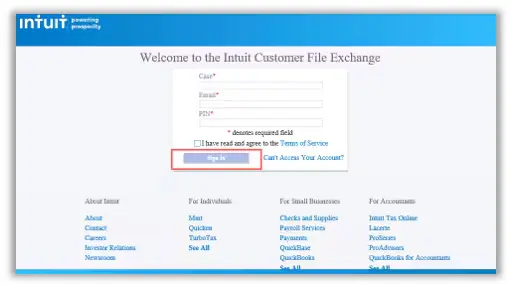
- Next, type in the Case number in the Case field, Email, and PIN
- Now, accept the Terms of Service and choose Sign In
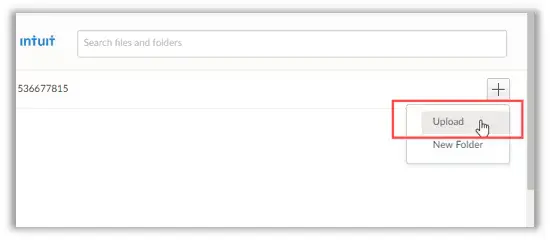
- Choose +, followed by selecting Upload
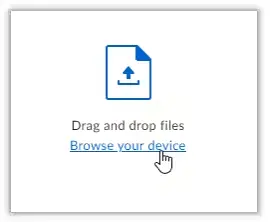
- After that, drag and drop the file or choose Browse your device to find the file

- Choose Upload, and once you upload the files, choose Close to exit the site
These were the steps you needed to implement for uploading your company file to the Intuit Customer Filer Exchange.
Complete DIY Instructions to Download the Company File by Using CFE
After you upload the company file by using the Intuit Customer File Exchange, let us walk you through downloading the data file from Intuit. This file exchange is a corrected data file, and it can be retrieved using the instructions below:
Note: Ensure to download your data files as they are deleted from the portal and server after 20 days.
- Start by signing into the Intuit File Exchange
- Next, type in the case number in the Case field, Email, and PIN
- After that, accept the Terms of Service, followed by choosing Sign In and finding your file
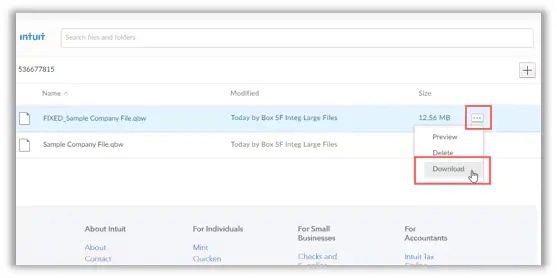
- Now, choose the ellipsis icon and then click on Download
- Search for the location where you wish to store your file
- Lastly, choose Save
There were the steps to download the company file from the Intuit Customer File Exchange. We advised you to follow each step in the given order to avoid any issues in the future.
Things You Must Ensure Before Uploading and Downloading Files from Data Services
While uploading or downloading the company file to Data Services, don’t enter your file on your system; you must ensure that the key pointers listed below are met.
- If you upload the QB company file to Data Services, no need to enter any data in your file on your system. If you do, you’ll need to include the information again when we send it back to you
- It is advised to download the “Readme.docx” file if available. This file has information that is required to access the repaired file. Save both downloads to where you wish to save the file
- If you’re on a network or a server, regain the file locally before you store it to its host location
- Remember that your data file may end with .qbm. It’s a compressed duplicate version of your company file. However, you can convert the file if you require
After ensuring the above-mentioned pointers, you can smoothly upload or download the QB company file into Intuit Customer File Exchange.
A Quick Overview of Intuit Customer File Exchange
You should go through the quick overview table below to see the more condensed version of the information discussed in this blog about the Customer File Exchange:
| Explanation of what CFE is | Sometimes, to help speed up uploading or downloading the QB company file, Intuit offers a platform called the Customer File Exchange. To do so, you will need to contact Intuit PIN. |
| Way to upload & download QB files in Intuit | The CFE lets you send any QB file. Upload the QB Files To upload these files, open a browser, go to the file exchange site, enter the Case number in the Case field, Email, and PIN, then accept the terms of service and choose Sign In. Choose + and then Upload, and drag and drop your file, select Upload, or choose Close to exit. Download the Company Files Sign in to Intuit File Exchange, type in the Sign in to Intuit File Exchange, type in the case number in the Case field, Email, and PIN. Now, agree to the Terms of Service, choose Sign In, find your QB file, select the ellipsis icon, and then Download. |
| Important Points to Exchange | 1. Don’t enter any data if you send your company file to Data Services 2. In a case, you are operating over a network server, restore the file locally before you save it to its host location To know more pointers, go through this blog. |
Conclusion
This was all about the Intuit Customer File Exchange platform and how to utilize it to upload and download company files. It is advised that you follow the given instructions in the outlined order to avoid running into issues. However, if you have any further confusion or queries or if you are facing difficulty in uploading or downloading company files, seek professional assistance. For that, dial +1(855)-510-6487 to connect with a certified QB expert.
Frequently Asked Questions (FAQs)
What is the Intuit Customer File Exchange platform?
Intuit offers Customer File Exchange or CFE, which enables you to upload and download the QB company file. This platform enables automatic data exchange between QuickBooks and other platforms. Additionally, it minimizes problems, maintains concise records, and saves time. Moreover, this service ensures compliance, streamlines integrations, and enhances performance and decision-making.
What is the file size limitation when uploading or downloading QB company files to Intuit?
Intuit sets a limit on the size of company files when uploading or downloading them. You can send a file of up to 30 GB. However, we advise limiting the file to no more than 5 GB for an easy upload.
What are the specific requirements when uploading or downloading files to Intuit?
There are some things you will need to take into consideration when uploading or downloading QB Desktop company files to Intuit:
1. The QB Desktop version must be compatible with Intuit
2. Check that the Intuit account possesses all the permissions for accessing and managing the QB company files
3. Verify the computer requirements and compatibility for Intuit
Can I open a QBB file without QuickBooks?
Yes, you can easily access a QBB file without QuickBooks software, which can be achieved through various methods, including utilizing third-party file converters, file viewers, or specialized application solutions for data conversions and access.

Kate is a certified public accountant (CPA) with expertise in various accounting software. She is technically inclined and finds passion in helping businesses and self-employed people carry out bookkeeping, payroll, and taxation without worrying about errors. Every once in a while, Kate loves to travel to far-off places and relax in the lap of nature.