
Last Updated on March 16, 2026
QuickBooks offers an add-on service called Payroll that you can subscribe to. It makes operations, such as sending paychecks, calculating and filing taxes, handling employee deductions, employee bonuses and benefits, and filing forms like W-4, easier. For that, the very first thing you need to do is buy a QuickBooks Payroll subscription, whether you use QB Online or Desktop.
Next, you will need to set up Payroll. In this blog, we will show you how to set up Payroll in QuickBooks application.
If you are facing any technical troubles while setting up the QuickBooks Payroll, seek professional help. Connect with us at +1(855)-510-6487 to speak with a certified QB expert for valuable assistance.
An Introduction to QuickBooks Payroll
QuickBooks Payroll helps you manage and run payroll processes for employees with ease and accuracy. Additionally, it enables timely payments and tax filings. With this software, you can customize payroll to issue weekly, biweekly, monthly, or quarterly paychecks.
In QuickBooks Online, you can get a free 30-day trial for those interested in it. Once you have activated the payroll subscription, you will need to set it up. Let us go through the different types of payroll services offered by Intuit.
Different Types of QuickBooks Payroll Services
Before learning how to set up Payroll in QuickBooks, it is essential to understand the types of QuickBooks Payroll services offered across the Online and Desktop versions to choose your subscription wisely.
QuickBooks Online Payroll
You need to choose between Payroll Core + Simple Start, Payroll Core + Essentials, Payroll Premium + Plus, or Payroll Advanced in QuickBooks Online. We have listed features you can avail yourself of according to your type below.
- QBO Payroll Core + Simple Start: If you choose this subscription, you can avail:
- Onboarding free session
- Unlimited quotes and invoices
- Automated Payroll
- Easy track of income and expenses
- Receipts of snap and store
- Track kilometers
- nEasy to connect your bank account
- Track GST & e-lodge BAS
- Insights & reports
- Plan the cash flow
- Chat and phone messaging support
- 250 Chart of Accounts
- QBO Payroll Core + Essentials: This subscription offers all the benefits of the previous one, and, other than that, you can avail:
- Ability to manage three users
- Data migration is free
- Ability to manage suppliers and bills
- Access multi-currency
- Easy to set up the recurring transactions
- QBO Payroll Premium + Plus: This subscription plan will provide all the benefits of previously discussed subscriptions, with included benefits like:
- Ability to manage the five users
- Easy to track inventory
- Seamlessly manage multiple projects
- Easy to manage budgets
- Ability to track 40 locations and classes
- QBO Payroll Advanced: This is the most extensive payroll service offered by QuickBooks. With this subscription, you will get the features from the previous versions, with:
- You can manage an unlimited Chart of Accounts
- Easy to manage 25 users
- Ability to keep track of locations and classes
- Excel with data sync
- You can customise role permissions
- Automate workflows
- Custom reporting fields
- Customise dashboards
- Ability to back up and restore data
- Easy to manage revenue recognition
This is the list of different payroll types and the perks you will get when you subscribe to them. Going through this section will help you select the appropriate subscription plan. After buying the right version, the next thing you will know is how to set up Payroll in QuickBooks application. Follow the next section to learn about the next steps.
QuickBooks Desktop Payroll
You should know that the QB Desktop Payroll Basic and Enhanced subscriptions are no longer being offered. You can choose from QB Payroll Enhanced or Enterprise for QBDT. Select the subscription plan that best suits your requirements.
How to Set up Payroll in QuickBooks and Tasks: A Step-by-Step Approach
Follow this to learn the process in depth to know how to set up Payroll in QuickBooks Desktop and Online. Let’s begin by discussing how to set up payroll in QuickBooks Online.
A. Detailed Steps to Set Up QuickBooks Online Payroll and Tasks
We have listed the full process to start and set up tasks in QuickBooks Online. For that, follow the process outlined below.
Learn How to Start Your Payroll Setup
Implement the instructions below to start your QuickBooks Online Payroll services:
- Start by purchasing the appropriate Online Payroll Subscription
- Next, log in to the QBO account as an admin
- Head to the Payroll tab
- Now, select Overview
- Here, press the Get started option
- You need to select if you (or another user) have paid the employees in the current year
- Then, select the date for when you will start paying your employees via QBO Payroll
- Now, fill in the business address:
- Enter the physical address (not a PO box). The business location will determine your tax responsibilities
- You can include those later when you add your employees, if you have multiple work locations
- Here, type in your main contact information
- Commonly, it will be the person who is responsible for paying your employees. The payroll contact will get the essential payroll notification from us, and may speak with the payroll experts about your account
- Next, choose how you’ve run the payroll in the past
- You will be able to import employee and pay history information instead of entering it manually; however, it depends on your answer
- Here, you need to start adding your employees. Locate the Add your team option below for more details
- Now, if you haven’t paid any of the employees this year, you should opt to pay them now by paper check if needed. Other than that, you can also continue the setup and finish the remaining setup tasks. Locate the Set up tasks below
- Note: If you need to pay the employees now, you will be responsible for any payroll taxes due until you complete the payroll setup
- However, if you have paid employees this year, you will have more tasks to complete before you can run payroll. Find the Set up tasks below
After carrying out the steps above, head to the next section to add your team to your QuickBooks Online Payroll.
Set Up Tasks in QuickBooks Online Payroll
Now, you need “How to Set Up Payroll in QuickBooks”, which includes three sections: adding your team, adding the tax information, and connecting your bank account.
Add Your Team to QuickBooks Payroll Online Version
You should follow the instructions below to add your employees to QB Online Payroll. However, you must have the information below in hand before implementing any instructions to add them:
- A completed W-4 form
- You can also utilize any other equivalent forms if needed
- Hire date
- Date of birth
- Pay rate
- Any deductions from the paycheck, like:
- Insurance
- Retirement
- Wage garnishments
- Bank accounts and pay card information
- Sick leaves, vacations, or paid time off (PTO)
After that, carry out the next steps to add an employee to QuickBooks Online Payroll:
- Start by tapping Add an employee
- Next, enter the employee’s name and email address
- Here, if the employee wishes to enter their own personal, tax, and banking information, you should follow:
- Start by tapping on Yes, allow the employee to enter their tax and banking info in workforce
- After that, the employees would receive an invite email for QuickBooks Workforce
- Now, your employee can fill:
- Address
- SSN (Social Security Number)
- W-4 form
- Banking Information
- Now, hit Add employee
- Here, tap on Start or Edit to modify or add any employee info:
- Check whether your employee was self-set in the previous step; if yes, you won’t be able to change some fields in:
- Personal Information
- Tax withholding
- Payment method cards
- To make changes in the above fields, you can turn off the Employee self-setup
- Check whether your employee was self-set in the previous step; if yes, you won’t be able to change some fields in:
- Lastly, tap on Save after including the required info
Once done with the above process, follow the next section to add your tax information.
Add Your Tax Information in the QB Online Version
You will need to fill out your tax info for these fields when you set up the payroll:
- EIN (Employee Identification Number)
- State withholding/unemployment account numbers
- Account number of the local tax withholding, if required
- Tax deposit frequency:
- Federal, state, or local
- State tax rates:
- Unemployment
- Surcharges
- Disability as per the state rule
- Paid leave for family time
Next, carry out the instructions to set up the option to file your payroll taxes.
- Start by tapping on Settings
- Next, select Payroll Settings
- Head to the Taxes and forms section
- Now, choose Edit
- Here, you must choose from one of the options given below:
- Automate taxes and forms – Choose this if you wish QB to automate the tax filings
- However, if you enable the Auto-Pay/File option, you need to self-process any owed taxes beforehand, or you can’t automate the process related to future taxes
- Automate taxes and forms – Choose this if you wish QB to automatically file and pay your taxes
- If you turn on the Auto-Pay/File option, you would need to self-process any taxes beforehand, or it can’t process the future taxes automatically
- I will initiate payments and filings using QuickBooks – Choose this for manual, but electronic payment of taxes in the QB software
- I will pay and file the right agencies through their website or by mail – If you want to pay the taxes manually outside of QB software, then select this option. However, you still need to be able to generate the payments and filings in QB
- Automate taxes and forms – Choose this if you wish QB to automate the tax filings
- Then, tap on Save
- Finally, choose Done
After that, you will need to connect your bank account with QBO by following the process outlined.
Connect the Bank Account With the QuickBooks Online Application
You need to have the following information before connecting your bank account with QuickBooks:
- Name of principal officer
- Home address
- Social security number
- Date of birth
- Bank account information and the routing number of your business
After gathering the information above, you should carry out the steps to connect the bank account in QB Online Payroll:
- Navigate to the Connect your bank section
- Next, tap on Let’s go
- Here, click on Get started
- Access the Business section and press Edit
- Include any information that was missing, like the federal tax ID
- Hit Next and add the information listed below:
- Name of the principal office
- Physical address
- Birth date
- Social Security number
- Choose Next, tap on the Add new bank account option
- Browse for the name of the bank
- Enter the online banking user ID and password
- Or, you can choose Enter bank info manually
- Enter the account and routing number
- Press Save and tap on Accept and Submit
Implementing the above-mentioned process will help you ‘how to set up payroll in QuickBooks” Online version.
B. Effective Method to Set up QuickBooks Payroll in the Desktop Version
Let’s say you have purchased the QuickBooks Desktop Payroll plan according to your needs. The next process must be to activate your Payroll in the QuickBooks application.
Activate the QuickBooks Desktop Payroll Subscription
Once you have purchased the payroll plan, you will receive a 16-digit service key by email. You must enter it in QuickBooks Desktop to activate your payroll account. For that, follow the instructions below:
Scenario I: You Have Purchased Payroll Online
Follow the steps below how to set up payroll in QuickBooks Desktop if you have purchased the payroll subscription from an online provider:
- Start by opening the QuickBooks Desktop application
- Next, head to the Employees menu
- Now, tap on the Payroll
- Here, hit Enter Payroll Service Key
- Choose Add and then enter the 16-digit service key
- Tap on Next, then select Finish
- Finally, wait for the tax table to download
Scenario II: You Have Purchased Payroll From a Retail Store
- Start by launching the QB Desktop
- Next, navigate to the Employees menu
- Now, tap on Payroll
- Here, hit the Install Payroll from the Box
- Type in the Payroll License and Product Information in the Payroll Activation page
- Easily locate the license and product information on a yellow sticker on the CD folder inside the box
- Press Continue
- Carry out the further on-screen instructions how to set up payroll in QuickBooks
- End the process by entering the service key
After that, you must add Employees to the QuickBooks Desktop Payroll by following the next section.
How to Set up Tasks in QuickBooks Desktop Payroll
You can follow the instructions below how to set up payroll in QuickBooks Desktop.
1. Add Employees to Your QuickBooks Desktop Payroll
To complete the payroll setup, the next thing to do is to add your employees to the QB Desktop Payroll. For that, first you should verify that to have the details given below:
- Hiring Date
- Date of birth
- Completed W-4 form
- Pay rate
- Paycheck deductions, including:
- Contributions to insurance
- Retirement information
- Wage garnishments
- If applicable, you must fill in the direct deposit information
- Bank account or pay card information
- Sick leaves, vacation, and PTO accrual rates and balance
Once you have confirmed the information, you should carry out the instructions below to add an employee to the payroll:
Start by opening the QBDT application
Next, head to the Employees menu
Now, tap on the Employee Center option
Hit New Employee
Here, enter the needed information
Tap on OK
Now, let’s move further to setting up company contributions in QuickBooks Desktop Payroll.
2. Set Up Company Contributions in QuickBooks Payroll
You can choose from an existing preset list, such as pay items, retirement deductions, and insurance perks, or you can also set up customer items. You should also add the provided benefits, such as paid leave and sick time off, if required. Once done setting up the payroll items, hit the Assign to employees button to apply them to all the employees.
3. Set Up Taxes in QuickBooks Desktop Payroll
You should have the information listed below for setting up taxes in payroll in QuickBooks Desktop:
- Employer Identification Number (FEIN)
- State withholding account number
- And/ or Unemployed account number
- Federal and state deposit frequencies
- Rates as per the State tax, including:
- Unemployment
- Surcharges
- Disability as per the State law
- Paid family leave
- Other such rates
The above steps will help you complete the QB Payroll setup. However, if you want to know the process of setting up the manual version of QB payroll, which is free to use, you should follow the next section.
The Easiest Way to Set up QuickBooks Manual Payroll in the Desktop Version
You should follow the detailed instructions mentioned below how to set up payroll in QuickBooks Desktop application:
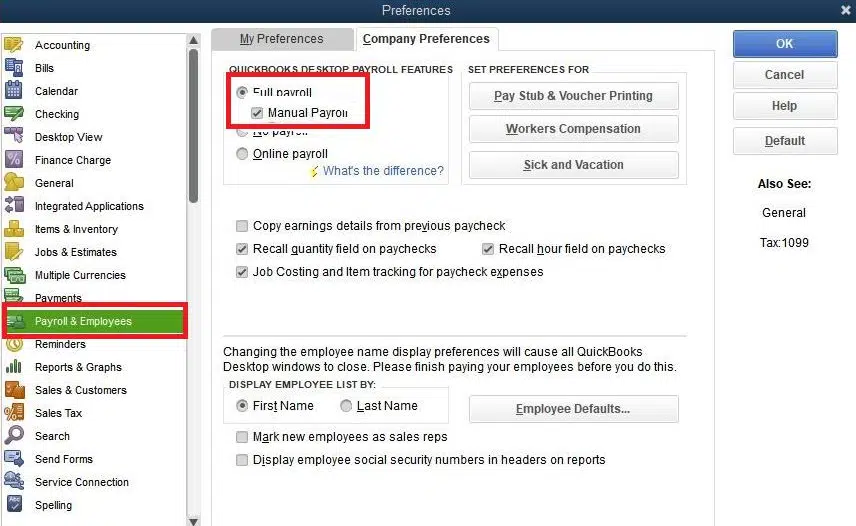
- Start by opening the QB Desktop application, then from the Edit tab, tap on Preferences
- Choose the Payroll and Employees from the left side panel
- Tap on the Company Preferences tab
- Now, ensure that the Full Payroll and Manual Payroll options are checked under the QB Desktop Payroll features section
- Here, tap on Next in the Get payday peace of mind window
- After that, hit Activate in the confirmation screen
- Next, press OK and apply the changes
- Finally, choose OK again to exit the window
After that, you should set up manual Payroll in QuickBooks software, which is ready to perform the critical company operations.
Steps to Perform If the Manual Payroll Option isn’t Available
Occasionally, you may face technical problems while how to set up payroll in QuickBooks. Here, if you can’t see the manual payroll option or the button is grayed out, implement the following troubleshooting steps.
Step 1: Update QuickBooks Desktop and Payroll Tax Table
To resolve these payroll errors, you should ensure that you update the QuickBooks Desktop to the latest version. After ensuring that, next, you must update the Payroll Tax table to the latest by following the steps below:
- Start by opening the QuickBooks Desktop
- Next, navigate to the Employees menu
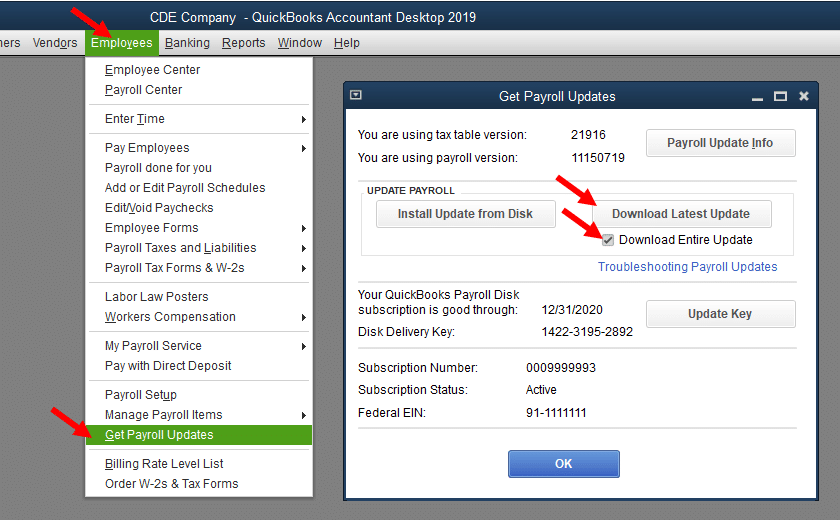
- Choose the Get Payroll Updates option
- Now, choose Download Entire Update
- Tap on Update and wait for the informational windows to appear on screen
Once the update is done, rerun QuickBooks and verify whether you can set up manual payroll. However, if you still can’t find the option, head to the next step.
Step 2: Disable the Internet Connection
You must implement a counterintuitive resolution by disabling the internet connection before browsing for the manual payroll, as outlined:
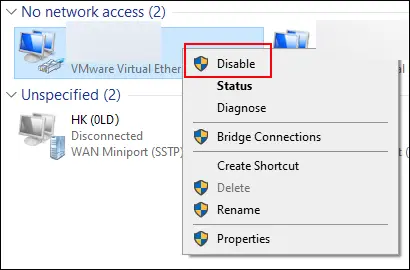
- Start by disabling the internet connection on the computer and opening QB Desktop’s Help menu
- Browse for “manual payroll”, to access (not internet) a copy of the “Calculate payroll taxes manually” information, which includes the “manual payroll calculation setting” link, which links to an “Are you sure?” Help page
- Locate the QBP Desktop message, stating “Manual Payroll has been enabled.” You should head to the Edit tab
- Now, choose Preferences, tap the Payroll
- Lastly, choose Company, and you will see the (unclickable) checkbox available
After carrying out the steps above, check again whether the issue is resolved. However, if you are still facing the same issue, move to the next step.
Step 3: Delete the Payroll Service Key from the File
If the manual payroll option is still not available, you must try removing the payroll service key to ensure the manual payroll. The service key will prevent you from switching to the QB manual payroll:
- Start by backing up your company file, then head to the Employees menu
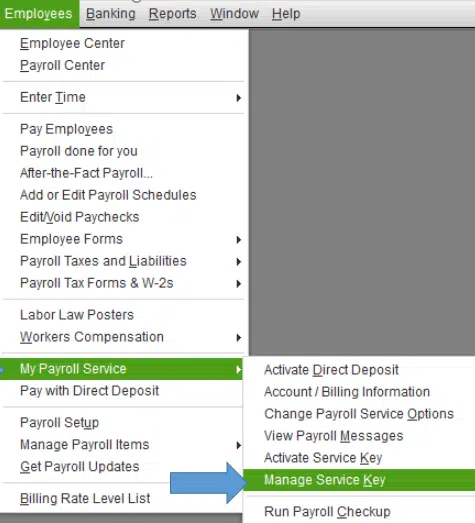
- Next, navigate to the My Payroll Service, choose Manage Service Key, and highlight the payroll subscription
- Tap on Remove or Press ALT + 0 (Zero), and step with Yes to confirm
Once you have removed the service key, you should check the Preferences again to make sure that the Manual payroll option is available.
A Quick View on How to Set Up Payroll in QuickBooks Online or Desktop Version
The quick view table below will show you the condensed version of the information we have covered so far to help you resolve your query on how to set up payroll in QuickBooks Online or the Desktop version.
| Description | QuickBooks Payroll enables you to easily manage payroll for small, medium, and large businesses. In this blog, we have discussed how to choose the right payroll subscription as per your requirements and the ways to set it up. |
| QB Online Payroll types | 1. Payroll Core + Simple Start 2. Payroll Core + Essentials 3. Payroll Premium + Plus 4. Payroll Advanced |
| Set up QuickBooks Online Payroll | Start the payroll setup, add the team, add your tax information, and connect your bank account with QBO. |
| Set up QuickBooks Desktop Payroll | Activate QB Desktop Payroll subscription, add employees, set up company contributions, and add the tax information. |
Conclusion
This comprehensive guide covers all the significant aspects of how to set up payroll in QuickBooks Online and Desktop versions. We have discussed the various types and benefits of payroll subscription. It has also outlined the right way to set up the manual payroll in QuickBooks, which is a free version. However, if you are facing any trouble related to setting up the payroll in the QB application, you should seek professional help. For that, connect with us at +1(855)-510-6487 to speak with our team of experts who will be happy to help you.
Frequently Asked Questions (FAQ’s)
What are the common challenges with QuickBooks manual payroll?
You will get several benefits from maintaining manual payroll. However, it has some challenges as it is a time-consuming and labor-intensive process. QuickBooks manual payroll can lead to a higher risk of technical issues, and it lacks legal compliance support.
How can you enter a manual payroll paycheck in QuickBooks?
To enter a manual payroll check in QuickBooks, follow the instructions below:
1. Start by choosing Payroll & Employees
2. Head to the Company Preferences tab
3. Choose the QuickBooks Payroll Features
4. Here, choose the Full Payroll and Manual Payroll checkboxes, then tap on Next in the Get Payday peace of mind window
5. Lastly, choose Activate in the confirmation screen and tap on OK
How can you turn off payroll in the QuickBooks application?
If you are required to turn off the payroll in QuickBooks Desktop, follow the instructions below:
1. Start by browsing to Employees, then Payroll Center
2. Hit Cancel Service in the Payroll tab
3. After that, follow the further on-screen instructions

Kate is a certified public accountant (CPA) with expertise in various accounting software. She is technically inclined and finds passion in helping businesses and self-employed people carry out bookkeeping, payroll, and taxation without worrying about errors. Every once in a while, Kate loves to travel to far-off places and relax in the lap of nature.