
Last Updated on March 6, 2026
While using the QB Desktop application, there is a chance you may encounter a QuickBooks network connection error. This issue can prevent you from performing operations and using any internet-based services. Usually, it occurs when e-filing or e-paying taxes in QuickBooks, or when performing any other tasks. In this blog, we will go through all the reasons that can lead to a connection error in QBDT. Moreover, we will also provide you with effective troubleshooting methods to overcome this problem seamlessly.
Potential Reasons Behind QuickBooks Network Connection Error
Before you can troubleshoot this issue, you need to understand its causes, as mentioned below:
- Lack of permission for the folder containing your company file.
- The firewall is blocking the QBDT app.
- A corrupted or damaged company file can cause this error.
- The QB company file monitoring service might have ended abruptly.
- The server connection may be interrupted.
- A damaged or corrupted network descriptor file.
- When your system is set in hibernation or sleeping mode.
- If you are using multiple QB database services, or they are running in various systems at the same time.
- When your QuickBooks installation files are corrupted, you may encounter a network problem on your system.
- Lack of Windows user admin rights or incorrect permissions.
- If the browser has incorrect settings and configuration, it may trigger the problem.
- When your QBDT application is not updated to the latest version.
Listed above are the potential culprits that may cause trouble in your application. Next, let’s move on to the methods to tackle these situations.
Step-by-Step Guide to Overcome QuickBooks Network Connection Error
You might encounter this error in both the desktop and the online version. Let’s first look at the online version.
For QuickBooks Online:
The steps below can help you resolve a connection issue in your system when working in the online version.
- Reload the page by pressing F5.
- Restart your browser.
- You can also configure the firewall settings to check whether it is blocking QBO permissions.
For QuickBooks Desktop:
While you are facing a network connection problem in QB, perform the steps mentioned below to fix it:
Solution 1: Restart the System
First, restart your system and try to resolve the error.
- Click on the Windows logo from the taskbar.
- Now tap the arrow key next to the shutdown option.
- Choose the Restart option or press Alt+F4 on the keyboard and select Restart from the dropdown menu.
Once the restart is done, try accessing the QuickBooks application.
Solution 2: Check if the System is Connected to the Workstation
You might encounter the QuickBooks network connection error when in multi-user mode or when the file is being hosted on the internet. Verify if you have access to the internet and the wired or wireless network. If you encounter any internet access issues, try replugging the Ethernet cable.
Solution 3: Clean Install in Selective Startup Mode
Switch to selective startup mode to ensure no other application is causing any trouble in your system.
- Eliminate the application if it is running in the background.
- Open the Run command from the Start menu or press Windows + R on the keyboard.
- Search for msconfig and hit OK.
- Go to the General tab.
- Choose the Selective startup button.
- Here, select the Load System Services check box in the window.
- Tap on the Clear the Load Startup Items box.
- Under the Service tab, choose the Hide all Microsoft Services box.
- Click on the Disable All button.
- Uncheck the Hide all Microsoft Services box again.
- Ensure that the Windows Installer box is selected in the list.
Now, restart your system and check if the issue persists in your system.
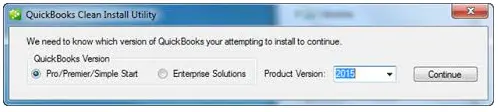
- Clean-install QuickBooks Desktop.
- Hit Windows+R on the keyboard to launch the Run command.
- Search for msconfig.
- Hit OK.
- Under the General tab, choose Normal startup.
- Then, click on OK.
- In the system configuration window, choose Restart.
Following these steps will help you enable Selective Startup mode in QB.
Solution 4: Use the Quick Fix my Program
To use this tool, the first step is to download and install the QuickBooks Tool Hub.
- Launch the QuickBooks tool after installation is complete.
- Now, go to the Program Problems tab.
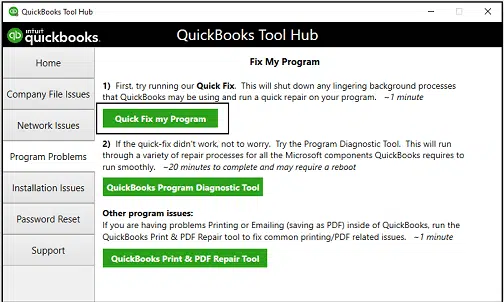
- Click on the Quick Fix my Program option.
The tool will run and fix the issue if it is related to the program.
Solution 5: Use the QB File Doctor
You can use the File Doctor to fix this issue. To use the feature, you need to access the QuickBooks Tool Hub again.
- Go to the Company File Issues tab.
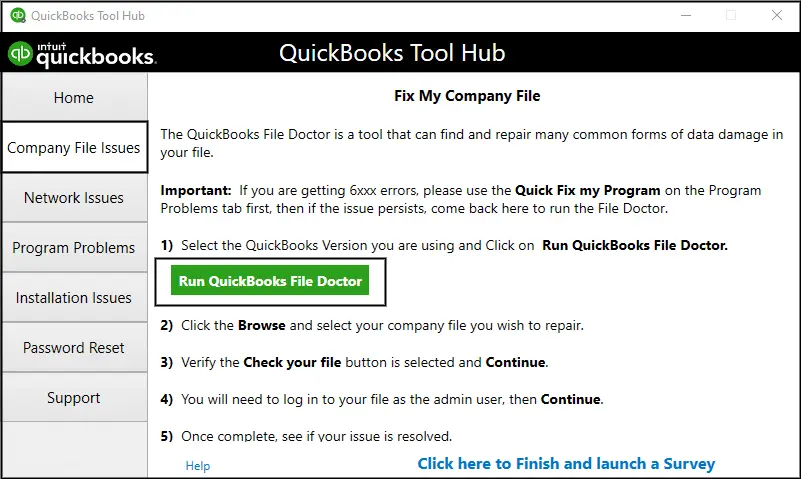
- Choose the QuickBooks File Doctor.
- Under the File Doctor, choose the company file from the dropdown menu.
- You can also tap Browse to search for your file if you are unable to locate it.
- Choose the Check your file and Network option.
- Tap on Continue.
- Enter the QB admin password and hit Next.
This process may take a little time to run and diagnose the problem. After completing the steps, check whether the error persists.
Solution 6: Run the Verify and Rebuild Tool
You can check for data damage in the company file that is causing the issue and overcome the problem by following the steps mentioned below:
- Tap on the File menu.
- Then go to the Utilities.
- Tap on the Verify Data option.
- Hit OK.
- Again, go to the File menu.
- Now, click on the Rebuild data option under the Utilities tab.
- When a pop-up message appears, hit OK.
- Choose a location where you wish to save the backup file.
- Tap OK, and a message that Rebuild has completed will appear.
These steps will verify and rebuild the company file’s data.
Solution 7: Modify the Firewall Settings
Check whether Windows Firewall is blocking your QB operations; this might be a QuickBooks network connection error.
- Go to the Start menu in the taskbar.
- Search for the Firewall Settings.
- Tap on the Advanced Settings option.
- Now, right-click on the inbound rules under the Advanced Settings.
- Select the Program option.
- Click on Next.
- Choose This Program Path and Browse.
- The file formats that need to be added up are as follows:
- AutoBackupExe.exe C:\Program Files\Intuit\QUICKBOOKS YEAR
- Dbmlsync.exe C:\Program Files\Intuit\QUICKBOOKS YEAR
- DBManagerExe.exe C:\Program Files\Intuit\QUICKBOOKS YEAR
- FileManagement.exe C:\Program Files\Intuit\QUICKBOOKS YEAR
- FileMovementExe.exe C:\Program Files\Intuit\QUICKBOOKS YEAR
- QuickBooksMessaging.exe C:\Program Files\Intuit\QUICKBOOKS YEAR
- QBW32.exe C:\Program Files\Intuit\QUICKBOOKS YEAR
- QBDBMgrN.exe C:\Program Files\Intuit\QUICKBOOKS YEAR
- QBServerUtilityMgr.exe C:\Program Files\Common Files\Intuit\QuickBooks
- QBCFMonitorService.exe C:\Program Files\Common Files\Intuit\QuickBooks
- QBLaunch.exe C:\Program Files\Common Files\Intuit\QuickBooks
- QBUpdate.exe C:\Program Files\Common Files\Intuit\QuickBooks\QBUpdate
- IntuitSyncManager.exe C:\Program Files\Common Files\Intuit\Sync
- OnlineBackup.exe C:\Program Files\QuickBooks Online Backup
- Choose the Allow the Connection option.
- Tap on Next.
- Select all the profiles if asked.
- Again, click on Next.
- Create a rule and allot a name such as QBFirewallException(name.exe).
You can modify the firewall settings here and create an exception for QuickBooks operations.
Solution 8: Disable the Power Management on the Server
Access your primary computer where the company file is stored and follow the steps below:
- Go to the search menu in the taskbar.
- Search for the Control Panel.
- Look for the Power option.
- Choose the Turn off standby, hibernation, and sleep mode option.
Now, access the QB application to check if the issue persists.
Solution 9: Exit the Database Server Process
There may be times when QB-related processes cause this error. Try ending the process from the taskbar.
- In the search bar, look for Task Manager or press Ctrl+Shift+Esc on the keyboard.
- Now, go to the Processes tab.
- Scroll and search for qbdbmrn.exe, then choose the End Process option.
- Now, close the taskbar.
Launch the QBDT application and check if the network connectivity issue persists.
Solution 10: Verify the Internet Connection
Check for the internet connection and review the permissions.
- Access the QuickBooks application.
- Now, head to the File menu.
- Choose the appropriate option to open Internet Connection Setup.
- Select Use my computer’s Internet connection settings to ensure a secure connection.
- Hit Next and done to troubleshoot the internet connection issue.
Solution 11: Delete the Blank Spaces
There can be times when this error occurs due to the empty spaces in the name of the company file.
- Access the QuickBooks Desktop application.
- Sign out of your account.
- Head to the company file folder on the server or the workstation.
- Now, right-click on the QuickBooks company file and choose the Rename option.
- Select a name by your choice and hit Enter to save it.
- Ensure to check if there are no extra spaces, characters, etc in the file name or extension.
Now, access the company file to check if the issue persists.
Solution 12: Launch the System File Checker
- Go to the Start menu and search for Command.
- Press and hold the Ctrl and Shift keys together, then press Enter.
- A permission pop-up message will appear; here, accept the terms and conditions.
- Search for sfc /scannow and hit Enter.
- Now, the system file checker will start running for the errors.
You are requested to follow the instructions on the screen to check whether the QuickBooks network connection error persists.
Solution 13: Change the Company File Location
Relocate the company file location to a new folder to avoid the issue in your system.
- Head to the current location.
- Choose Copy after you right-click on the file or Press Ctrl+C while the file is selected.
- Go to the place where you wish to save the file.
- Right-click on the new location and choose Paste or Press Ctrl+V.
- Access the QuickBooks application.
- Select Open or restore an existing company option.
- Access the company file.
- Tap on Next.
- When the new window pops up, move to the location where the data is copied.
- Choose the file to highlight, then tap Open.
These steps will change the company file location and make it accessible for you in the QuickBooks application.
Conclusion
In this blog, we have covered everything one needs to know when facing the QuickBooks network connection error. Incorrect network connection settings is usually the cause of this error.
Furthermore, we have added the reasons to help you understand the principal cause of the error and included troubleshooting steps to help you resolve it. If you need any further help with the internet connection issue on your system, connect with a QB expert. They are available 24/7 to provide real-time assistance.
Frequently Asked Questions (FAQ’s)
How to add Intuit as a trusted website to get rid of network connection errors?
If you want to add Intuit as a trusted website, here are the steps you need to follow:
1. Go to the Microsoft Edge browser.
2. Now, go to the Settings menu.
3. Find the Privacy, search, and services menu.
4. Move to the Cookies option.
5. Look for the Customized cookies behavior section.
6. Then, select the Add site for the Allowed to save cookies option.
7. Here, write Intuit.com and hit Add.
What are the steps to access QuickBooks as an admin?
To access QuickBooks as an administrator, here are the steps to follow:
1. Head to the Start menu.
2. Right-click on the Desktop icon.
3. Choose the Manage option.
4. Input the admin ID and password.
5. Now, you’ll be able to access QB with admin rights.
Why am I facing a QuickBooks network connection error?
There can be different reasons why you are encountering a network connection error in your system. These reasons include QBDT unable to open, outdated Windows OS or QBDT version, firewall blocking the operations, and the company file compatibility issue.

Alastor Moody is an Author at Asquare Cloud Hosting with experience in technical and functional writing. He loves travelling for adventure and fun.