
Last Updated on March 11, 2026
QuickBooks error 61696 indicates a problem with the company file. This issue falls under the 6000 error series, signaling complications with the company file. The error occurs when the data files in QuickBooks become damaged or corrupted. The QuickBooks data file serves as a database, and thus, the data is not stored in the program itself. The QuickBooks application processes and interprets data when it is properly organized. Files under 200 MB tend to be stable; however, larger files can become disorganized, difficult to load, and often cause errors.
Moreover, if you don’t fix this issue, it can also affect interconnected tools and automatic syncing. To address this problem, this guide provides information on the reasons and methods for correcting it. Explore this guide to discover how to resolve this file corruption error 61696 effectively.
What is QuickBooks Error Code 61696?
QuickBooks error 61696 is a data damage error that usually appears in QuickBooks Desktop when the company file becomes corrupted. It can occur while opening the company file, generating reports, or recording transactions. This error is commonly caused by structural database damage, issues with list data (such as customers or vendors), or corrupted transaction entries. Sometimes, improper shutdowns or interrupted updates may also contribute to the problem.
Users may experience software crashes, freezing, or incorrect account balances. The issue affects the accuracy and accessibility of financial data. To fix it, users typically run the Verify and Rebuild Data utilities in QuickBooks. In more severe cases, restoring a backup or using the QuickBooks Tool Hub may be necessary to repair the damaged file.
All the Common Reasons Behind QuickBooks Error 61696
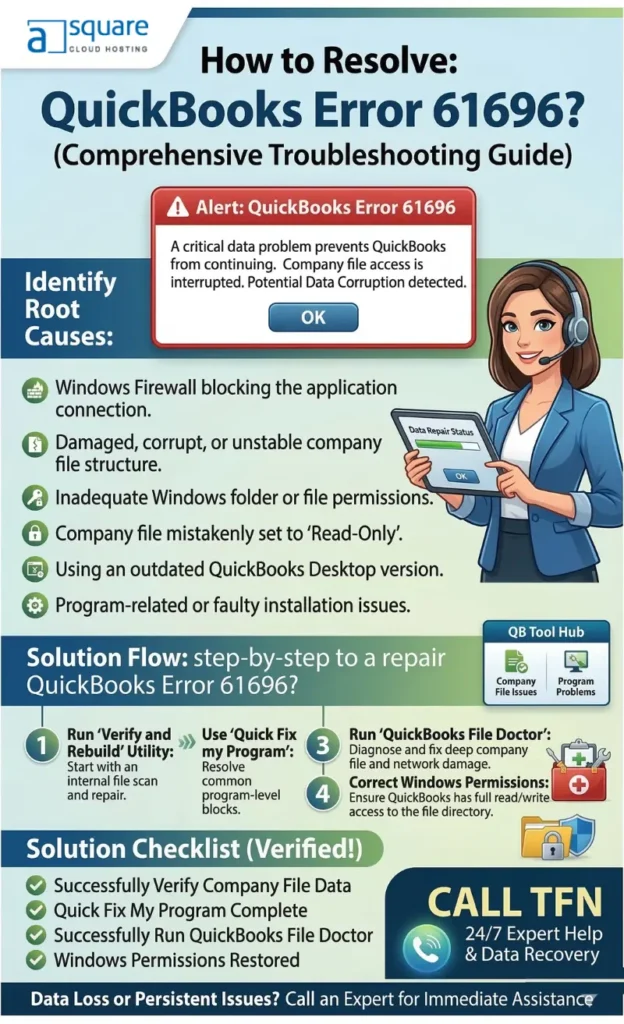
QuickBooks company file errors can occur due to both internal and external factors. In many cases, running the Verify Data tool helps identify these problems. Below are the causes of QuickBooks company file error 61696:
External Issues:
- Hardware Issues: Problems such as hard drive failure, RAM malfunction, network connectivity issues, unexpected shutdowns, or USB/Printer faults can trigger errors
- Software Problems: Other applications may interfere with the QuickBooks program. These conflicting applications can be detected using the QuickBooks Tool Hub
- Integrated Applications: Errors during application integration or data migration may result in file corruption
- Antivirus Problems: Incorrect quarantines or security modifications by antivirus software can damage data files
- Driver Issues: Outdated or faulty drivers may lead to corruption of QBW files
- Virus/Malware: Maybe your company files are affected by viruses and malware become unreadable and require recovery
- Operating System Updates: New OS updates may not be compatible with older versions of QuickBooks
Internal Factors:
- Larger File Volume: Large file size can slow performance and cause corruption
- List Damage: Lists such as Customers, Items, Accounts, and Vendors may become corrupted
- Transaction Damage: Transaction records may lose integrity or become missing
- Link Corruption: Broken links can disconnect payments, invoices, or related records.
- Structural Corruption: Damage to the file structure can result in serious corruption issues
After understanding the reasons behind this issue, continue reading the blog to learn more and troubleshoot it.
What You May Experience While Facing the QuickBooks Error 61696
It can be helpful to know the specific inconveniences you experience due to corruption in your QuickBooks file before beginning any repair process. Corruption typically appears through QuickBooks error 61696 messages, inaccurate reports, or missing data. Below, we have listed common things users experience:
- Error messages appear in the Verify Data Utility, such as “A data problem prevents QuickBooks from continuing” or “Verify Target: Values in minor do not match major.”
- QuickBooks may shut down while deleting or saving a transaction
- Assets, liabilities, and equity totals may fail to balance on the Balance Sheet
- Transactions or list entries may not be recorded
- Account names may show an asterisk (*) if the QB software replaces lost accounts
- Slow performance or unexpected response delays may occur
- Bills or invoices marked as cleared may appear unpaid
- Transaction history may not display positive balances
- HTML code may appear in the Bug Report window
Note: You may experience inconveniences, including receiving the wrong report output or experiencing QB file corruption.
Step-by-Step DIY Troubleshooting to Address QuickBooks Error 61696
To help you resolve the QuickBooks error 61696, we have outlined expert troubleshooting methods below with detailed steps. Go through these methods and follow the instructions carefully.
Method 1: Update the QuickBooks Application
Using outdated QuickBooks software can cause various issues with the company file. To address this issue, you must update QuickBooks Desktop by implementing the steps below:
- Start by accessing the QB Desktop software
- Next, head to the Help menu
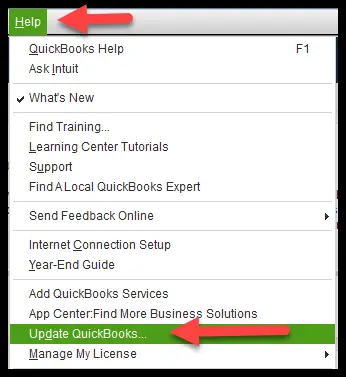
- Here, tap on Update QuickBooks Desktop
- After that, choose Update Now
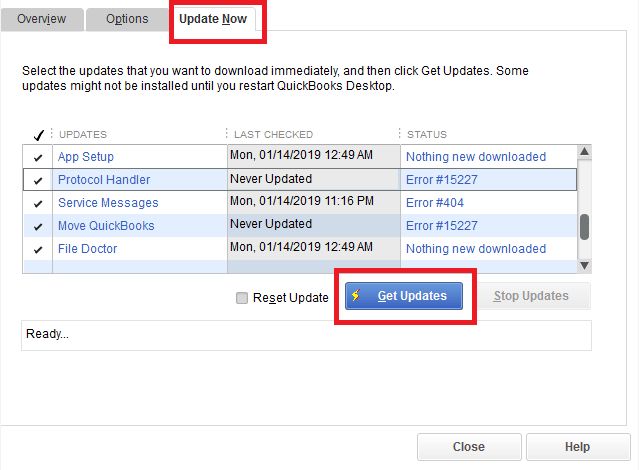
- Tap on the Get Updates option
- Lastly, exit and relaunch the QBDT application to download the updates
After implementing the above instructions, check again whether the QuickBooks error 61696 is resolved. However, if you are still facing the same problem, follow the next method.
Method 2: Verify the Windows Permissions for QuickBooks
If your Windows permissions are set inadequately for the QuickBooks Desktop application, you can encounter the QuickBooks error 61696. You must fix it by ensuring the Windows permissions are set correctly, using the instructions given below:
- Start by opening the File Explorer
- Next, head to the Intuit folder’s location
- Right-tap on the Intuit folder
- Now, choose the Properties option
- After that, head to the Security tab
- Tap on the Advanced button
- Ensure the Users group is selected in the Owner field

- Here, if you see the System option or something other than Users, perform these steps:
- Head to the Advanced Security Settings
- Tap on the Change in the Owner field
- Type in Users in the given space, then hit Enter
- Check-mark the Replace owner on sub-containers and objects checkbox
- Now, click on Users (YOUR COMPUTER NAME \ USERS) and check the Full Control, and hit OK
- Next, tap on Edit in the Security tab
- Hit Users (YOUR COMPUTER NAME \ USERS)
- Tick the Full Control check-box
- Lastly, press OK
Again, check whether the issue is resolved. However, if you are still facing the QuickBooks error 61696, follow the next method.
Method 3: Ensure that the Company File isn’t Set to Be Read-Only
If your QB software file is set to read-only, you will have trouble opening it through the QuickBooks Desktop, which will cause the QuickBooks error 61696. To fix it, check whether the read-only status is set with the steps given below:
- Start by accessing the File Explorer
- Next, go to the folder where the company file is stored
- Locate the company file
- Right-tap on the company file (.QBW)
- Next, select Properties and navigate to the General tab
- Uncheck Read Only if it is marked, and lastly, hit OK
Once you’ve carried out the above instructions, check again whether the issue is resolved. However, if you are still facing the same problem, try the next method.
Method 4: Utilize the Quick Fix My Program Tool
You can also resolve the QuickBooks error 61696 by using the Quick Fix my Problem tool from the QB Tool Hub. For that, carry out the instructions below:
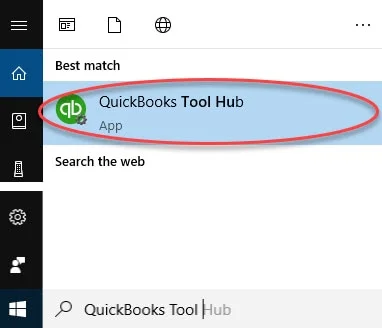
- Start by downloading and installing the QuickBooks Tool Hub application
- Open the QB Tool Hub software
- Now, head to the Program Problems tab
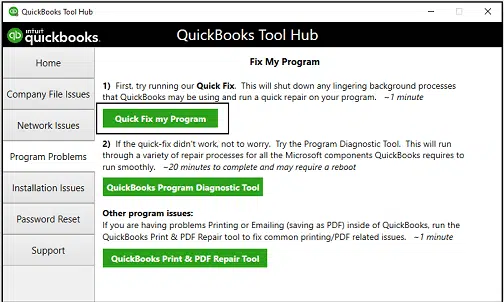
- Tap on the Quick Fix my Program
- Let the tool run and wait for it to repair program-related issues
After that, check whether the issue is resolved or not. However, if you are facing the same issue, implement the next method.
Method 5: Run QuickBooks Install Diagnostic Tool
Various installation issues with the QB Desktop application can be resolved using the QuickBooks Install Diagnostic tool. To run that, follow the instructions below:
- Start by opening the QuickBooks Tool Hub software
- Next, head to the Installation Issues tab
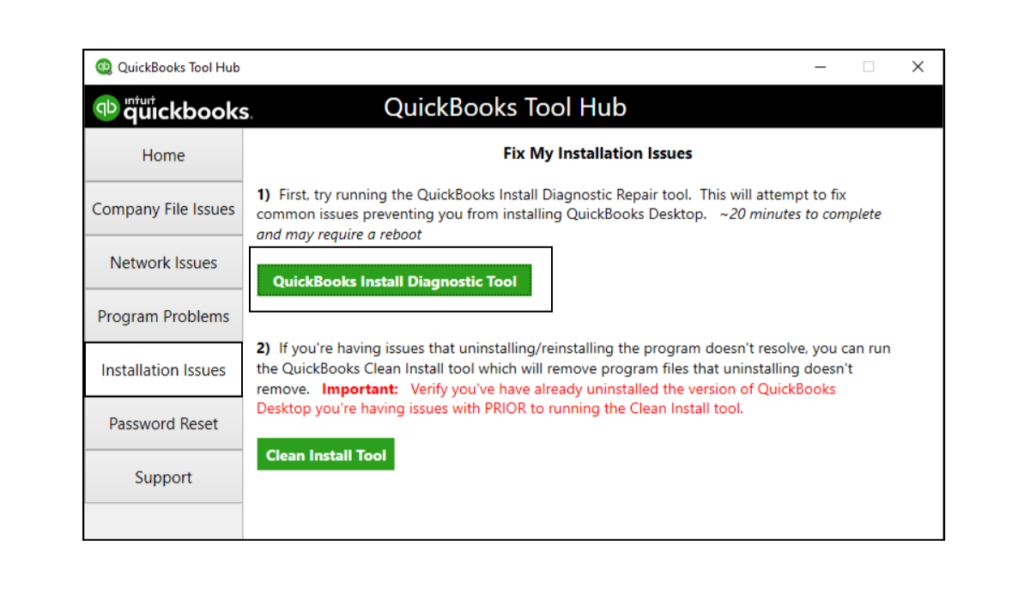
- Tap on the QuickBooks Install Diagnostic Tool
- Now, wait for the tool to run that can take up to 20 minutes to finish working
After carrying out above-steps run the tool again to check whether the issue is fixed. However, if you are still facing the same problem, follow the next method.
Method 6: Launch QuickBooks Desktop as an Admin User
Sometimes, due to insufficient admin permissions, you may face these types of errors. To tackle that, implement the steps below:
- Start by closing the QB Desktop application
- Next, right-tap on the QB software icon
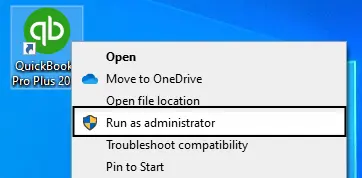
- Now, tap on the Run as administrator
- Try to access your company file again
Here, you need to check whether the issue is resolved or not. However, if you are still facing the same issue, follow the next method.
Method 7: Use the QuickBooks File Doctor Tool
Several company file problems can be resolved by running the QuickBooks File Doctor tool from the QB Tool Hub application, including the QuickBooks error 61696. For that, carry out the steps below:
- Start by opening the QB Tool Hub app
- Next, head to the Company File Issues tab
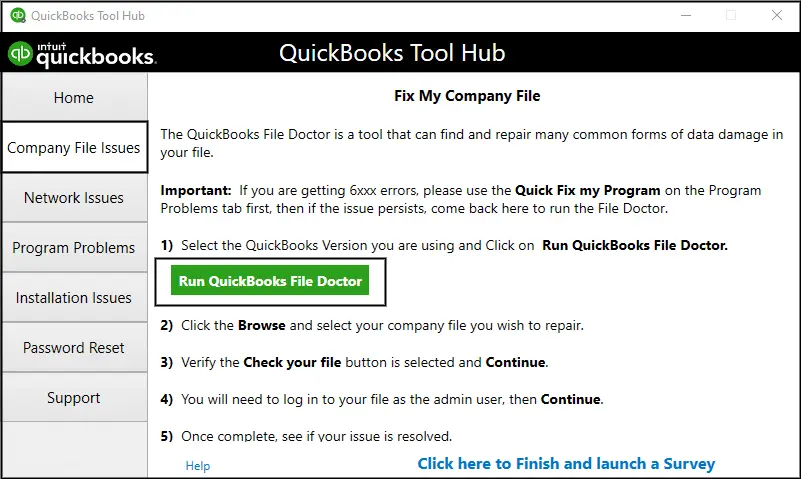
- Now, tap on the Run QuickBooks File Doctor
- Browse for the QuickBooks Desktop File Doc and access it manually
- After that, choose the company file from the dropdown menu:
- Tap on Browse and search to locate your file if you can’t see the file
- Now, tap on the Check your file option
- Choose Continue and enter the QB admin password
- Lastly, hit the Next
After carrying out these steps, verify again whether the issue is resolved. However, if you are still facing the same problem, try the next method.
Method 8: Repair the Company File Manually
Use the Verify and Rebuild Data Utility to repair files manually. Follow the steps below:
- Open the company file
- Log in as Admin
- Next, head to the File menu
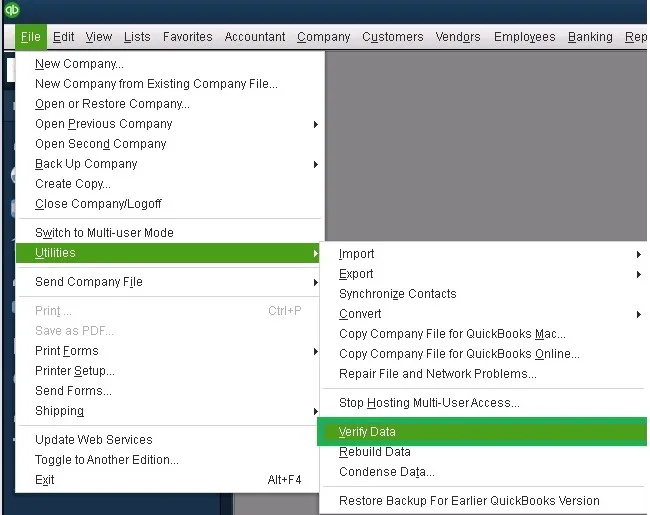
- After that, select the Utilities option, then click Verify Data
If the verification fails or takes too long, perform a rebuild. Follow these steps:
- Move the data file from the server to the local system
- Enable temporary hosting if required and log in as Administrator
- Navigate to the File menu
- Click the Utilities option
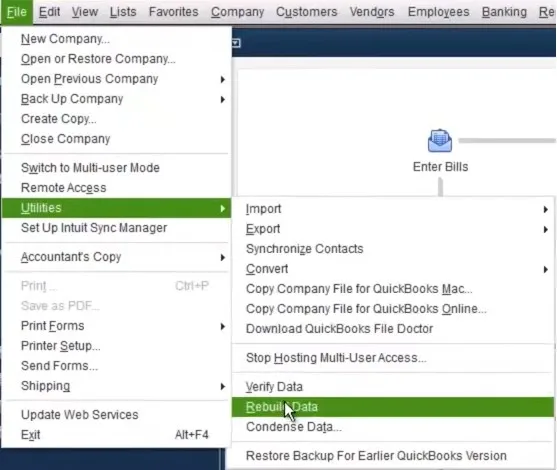
- Select the Rebuild Data option
- On both the local system and the server, save the required file under a new name
Note: The Rebuild process takes more time than Verify. Do not interrupt the process.
Method 9: Enable the UAC Settings On and Off
You should change the status of the User Account Control (UAC) settings and enable it to fix the QuickBooks error 61696 with the following instructions:
- Start by closing the QB Desktop app
- Next, locate and access the Start menu
- Browse and open the User Account Control
- After that, head to the Settings
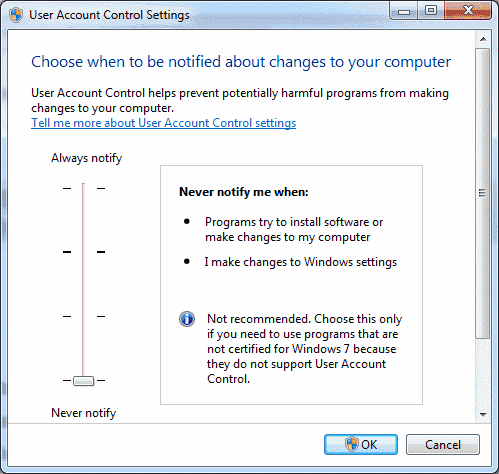
- Next, tap on Change User Account Control Settings
- Lastly, change the slider to Always Notify
Once you’ve done implementing the above-instructions, check again whether the problem is solved. Still facing the same issue? Try the next method.
Method 10: Create Firewall Exclusions for Your QuickBooks Desktop Application
Occasionally, Windows firewall settings can interrupt various QuickBooks processes. In such a case, you must create a firewall exclusion specified for your QB Desktop software.
After doing that, check again whether the issue is resolved or not. Still facing the same issue? Follow the next method.
Method 11: Restore the Backup Copy of Your QB Company File
To resolve error code 61696, you can restore an already created backup copy of your QB Desktop Company file if your current one isn’t working with the steps given below:
- Start by opening the QB Desktop application
- Next, move to the File menu
- After that, tap on Open or Restore Company
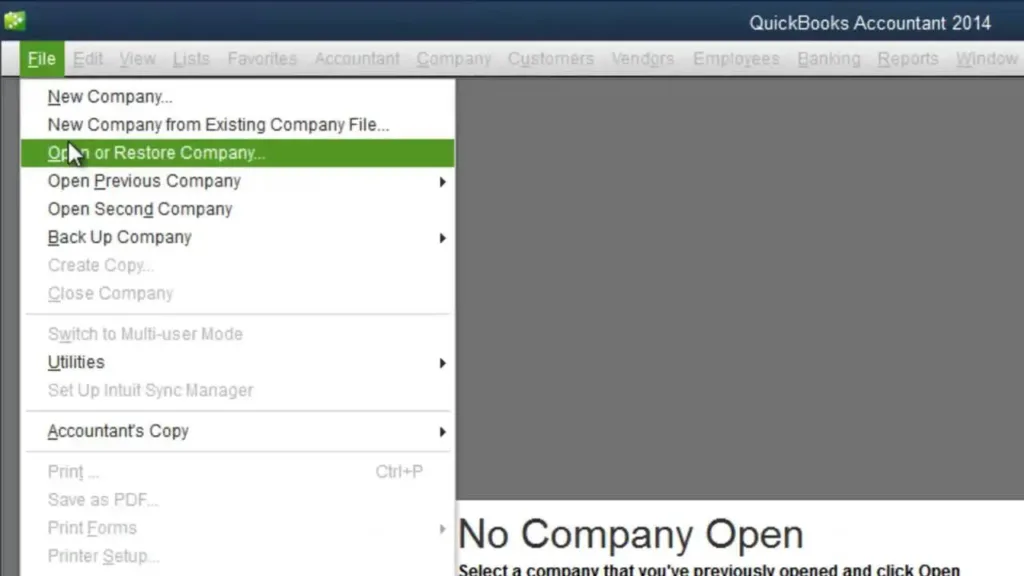
- Select the Restore a backup copy option
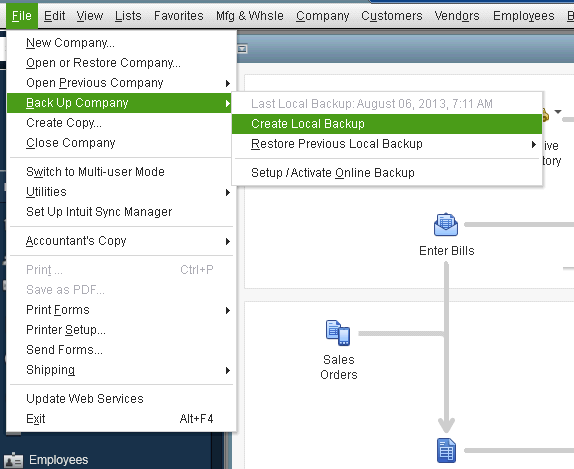
- Now, hit Next, followed by choosing the Local Backup
- Press Next, and locate the backup file on your PC
- The backup file will look like this: [Your company name].qbb
- Next, select the folder where the restored file will be saved
- Choose Open, followed by Save
- If you see a warning about overwriting data, choose the right option as per your requirements
- Remember not to overwrite anything unless you wish to
Now, the QuickBooks error 61696 should be patched. However, if this issue is still appearing on your screen, try the next method.
Method 12: Clean Install QuickBooks Desktop Application
Even after trying all the methods above, if you are still facing the same issue, you must clean install your QuickBooks Desktop.
Now, check again whether this issue is resolved. We hope that all these provided methods will help you to get rid of this issue.
Types of Data Damages You May Encounter in the QuickBooks Application
In QuickBooks, data damage can occur in multiple forms. Each type affects the company file differently. Below is a list of the various types of data damage in QuickBooks that can trigger errors, such as 61696:
Structural Data Damage
- Involves issues within database tables or headers
- Common errors include –6000, -301, and –6150, -1006
List Data Damage
- Affects customers, vendors, employees, accounts, or inventory records
- Corrupted Transaction Data
- Results in incorrect balances or inaccurate item history
- Often reflected in open balances and sales orders
- Link Data Corruption
- Breaks or interrupts links between related transactions
Understanding these different types of data damage helps you identify the root cause and take the right corrective action before it worsens.
Some Healthy Practices to Avoid Company File Loss in QuickBooks Software
QuickBooks files may become unstable once they grow beyond a certain size. Therefore, follow Intuit’s recommendations to reduce the risk of recurring corruption. Intuit recommends reducing file size when:
- QuickBooks Pro or Premier exceeds 200MB
- QuickBooks Enterprise exceeds 450MB
Below are the available options to reduce file size:
File Size Optimization Tool
Use the File Size Optimization tool to compress and manage file data. Before the selected date, create Journal Entries to close monthly activities. Adjustments to the Balance Sheet may be required.
Delete all transactions prior to a specific date. This method is time-intensive and requires re-entering Opening Balances for Accounts Payable, Accounts Receivable, and Banking.
Begin a New File
Create a new QuickBooks file using Opening Balances. This method provides the greatest size reduction but requires significant effort and planning.
Implementing these healthy practices will help you prevent these types of company files from being damaged in the future.
A Quick Overview of QuickBooks Error Code 61696
The quick overview table below shows you the key details of QuickBooks error 61696, such as its causes and expert troubleshooting methods.
| Error description | Error 61696 in QuickBooks indicates damage or corruption within the company file database. It typically interrupts the access to data and may cause crashes, freezing, or inaccurate financial records. |
| Common causes | Large company file size, corrupted list data, damaged transaction records, broken data links, structural file corruption, hard drive or RAM issues, network connection problems, sudden system shutdowns, conflicting third-party software, integration or migration errors, antivirus file interference, outdated or faulty drivers, malware file infection, or incompatible OS updates. |
| Troubleshooting methods | Update QB application, verify Windows permissions, the company file shouldn’t be Read-Only, use Quick Fix my Program tool, run QB Desktop as an admin user, run QB File Doctor tool, repair company file, turn on UAC settings, create firewall exceptions for QB software, regain the backup file, and clean install the QuickBooks. |
Conclusion
QuickBooks error 61696 commonly arises due to company file faults and program-related problems that can interrupt accounting workflows. We have discussed the main reasons and effective troubleshooting methods to resolve the error efficiently. Taking prompt corrective action, maintaining regular backups, and keeping QuickBooks and your system up to date are essential to reducing the risk of data damage. However, if the issue persists or you are experiencing any technical difficulties, seek professional help. For that, call +1(855)-510-6487 and speak with a certified QB expert.
Frequently Asked Questions (FAQ’s)
What does QuickBooks error 61696 mean?
QuickBooks error 61696 indicates corruption or structural damage within the company file database. It usually occurs when QuickBooks cannot properly read or process certain data components inside the QBW file.
What are the main causes of error 61696?
This error is commonly caused by structural file corruption, damaged list data (customers, vendors, accounts), corrupted transactions, integration or migration failures, hardware issues, outdated drivers, antivirus interference, malware infections, or incompatible operating system updates.
How do I fix QuickBooks error 61696?
To resolve QuickBooks error code 61696, run the Verify and Rebuild Data tool in QB Desktop. However, if the problem persists, use the QB Tool Hub, update QB software to the latest release, check the condition of system drivers, or restore a recent backup. In severe cases, professional data repair services may be required.
Can hardware or system problems cause this error?
Yes, hard drive failures, RAM issues, sudden shutdowns, unstable network connections, and outdated drivers can damage the company file and trigger error 61696.
How can I prevent QuickBooks error 61696 in the future?
Regularly back up your company file, keep your QB software and your Operating System up to date, avoid improper shutdowns, maintain system health, and then run the Verify Data tool to detect early signs of data damage.

Kate is a certified public accountant (CPA) with expertise in various accounting software. She is technically inclined and finds passion in helping businesses and self-employed people carry out bookkeeping, payroll, and taxation without worrying about errors. Every once in a while, Kate loves to travel to far-off places and relax in the lap of nature.