
Last Updated on September 24, 2026
QuickBooks is not immune to errors or technical glitches. Users often encounter issues that disrupt their workflow. One common problem from these issues is data loss. While using the QB, you may notice an additional folder containing newly created subfolders. This is the QuickBooks Auto Data Recovery folder, which automatically generates backups of your company files. If your data is lost, this tool can help you recover deleted QuickBooks data files. In this blog, we will learn in detail how the QuickBooks Auto Data Recovery tool functions.
Detailed Description on QuickBooks Auto Data Recovery Tool
ADR is a very important tool to help in backup creation for your data. To imagine or face a situation of data loss might bring severe effects on your business activities, and that is where this tool rescues it. The QuickBooks Auto Data Recovery tool uses your current Transaction Log file and a duplicate of your company file to restore all the lost transactions except the ones done in recent times. This recovery tool can provide many enhanced features to QB users, which are outlined below:
- Restoring the deleted transactions using the current transaction log file with a copy of the QB company file
- Additionally, this would restore all but the recent hours of transactions with a duplicate of both the company file and the .tlg file
Once done, discuss the ADR Tool, and continue with the next section to know more.
Importance of the Password Reset Tool When You Try Recovering Lost Company File
Well, addressing security concerns is one of the main reasons a password reset tool is necessary. The QuickBooks password retrieval procedure was created in response to cybersecurity concerns. There had previously been reports that a large number of persons could access the QuickBooks company file, allowing them to extract and steal crucial data and information.
However, the Automated Password Reset Tool may be able to help if you are having trouble changing the password for your QuickBooks program. You may easily reset your password with the aid of this program. You may find it useful if you have forgotten or misplaced:
- 15 Digit license number
- Contact name
- Phone number
- Email address
- Postcode
After knowing the details of the importance of the QuickBooks Password Reset Tool When trying to restore the lost data.
Points to Remember before Running QuickBooks Auto Data Recovery Tool
Before using the Auto Data Recovery tool, it’s important to understand a few key requirements to ensure it works correctly and efficiently.
- You can utilize the Auto Data Recovery tool only if you have QuickBooks Pro, Premier, or Enterprise Solutions for Windows.
- The Auto Data Recovery (ADR) feature is not available in the QuickBooks Accountant edition.
- The tool can back up company files up to 1.5 GB; files larger than 1.5 GB cannot have an ADR backup created.
- For best results, make sure you are using the latest version of QuickBooks.
Once these conditions are met, the Auto Data Recovery tool can function at its best and help restore essential QuickBooks data when needed.
Step-by-Step Guide to Recover Deleted QuickBooks Data Files
The QuickBooks software version affects how to reset passwords using the QuickBooks auto data recovery tool. You can use the ADR Tool to recover your lost data by following the instructions listed below:
Recover Lost Data Using Original .TLG File with .QBW.adr.file
If you have lost recent transactions, you can retrieve them using the current version of ADR and the old .tlg file. Do the same by following the steps below:
- Create a new folder on your Desktop and save it as QBTest
- Next, open the folder where your company file is stored (you can find the file path on the Product Information window by pressing F2 or Ctrl + 1, or on the No Company Open screen)
- Locate the .tlg file that matches your company file name
Show File Extensions
If you can’t recognise the .tlg file, follow the instructions below:
- Open File Explorer using Windows + EGo to Organize > Folder and search options
- Go to Organize > Folder and search options
- Remove the mark next to the Hide extensions for known file types, and then click Apply and OK
- Now, copy the .tlg file and paste it into the QBTest folder
- Open the QuickBooksAutoDataRecovery folder located in the same folder as your company file
- Now, copy the .QBW.adr file and paste it into the QBTest folder so that the folder stores both the .QBW.adr and .tlg files
- In the QBTest folder, right-click the .QBW.adr file and choose Rename
- Delete the .adr extension from the file name, then relaunch QuickBooks
- Open the company file located in the QBTest folder and check the account register to confirm the transactions are intact
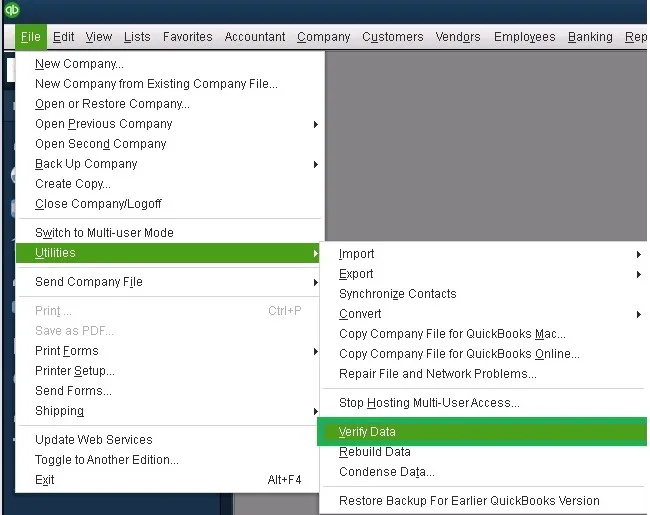
- Go to File > Utilities > Verify Data to ensure the recovered file’s data integrity
- If this restored file is working properly, move the damaged company file elsewhere and replace it with the verified copy from the QBTest folder
This will help you recover deleted QuickBooks Data files by using .TLG file with .QBW.adr.file. There is another way to recover lost QB files. To try that method, follow the next method.
Recover Recent Transactions Using .QBW.adr and .TLG.adr Files
This way utilizes the ADR versions of both the .QBW and .TLG files. It can restore your data, except for the most recent 12 hours of transactions:
- Create a folder on your Desktop and name it QBTest
- Navigate to the location where your company file is located, then open the QuickBooksAutoDataRecovery folder found within it
Tip: If you’re unsure where the company file is located, open the Product Information window by pressing F2 or Ctrl + 1, or check the No Company Open screen.
Inside the folder, locate the .TLG.adr and .QBW.adr files, which share the same filename as your company file
Show File Extensions
If you’re unable to find these files, enable file extensions to make them visible. For that, perform the instructions below:
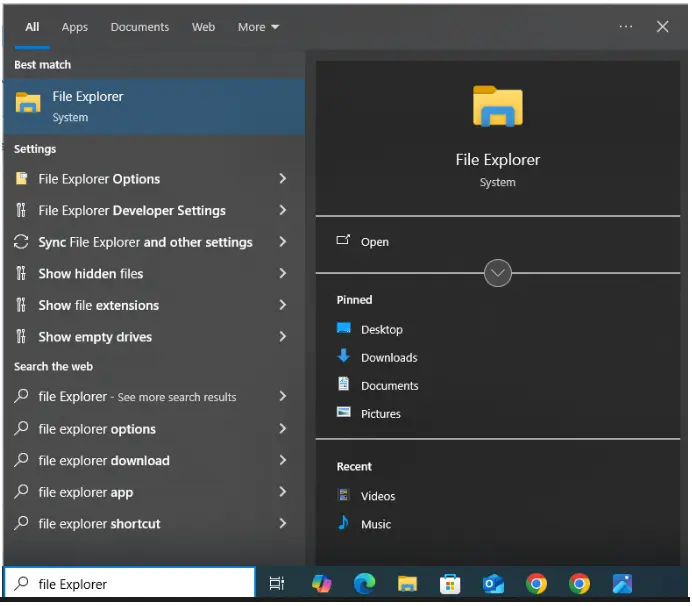
- Open File Explorer by pressing Windows + E on your keyboard
- Click Organize and choose Folder and search options
- Next, uncheck the option Hide extensions for known file types
- Select Apply, then click OK to confirm
- Now, copy the .tlg.adr and .qbw.adr files and paste these files into the QBTest folder
- Remove the .adr extension from both files in the QBTest folder so they convert into .qbw and .tlg files, and launch QuickBooks
- Open the company file located in the QBTest folder and check the account register to ensure all transactions are present
- Go to File > Utilities > Verify Data to confirm the recovered file’s data integrity
- If the recovered file is valid, move the damaged company file elsewhere and replace it with the verified file from the QBTest folder
These steps should help you successfully recover deleted QuickBooks data files using the Auto Data Recovery Tool. If the restored file opens correctly and passes verification, you can safely replace the damaged file. However, if issues continue, additional repair tools or professional assistance may be required.
A Quick Overview on How to Recover Deleted QuickBooks Data Files
The quick view table gives a brief look at why QuickBooks data files get lost and the methods you can use to recover them quickly and safely.
| Auto Data Recovery Tool | The Auto Data Recovery tool in QuickBooks creates automatic backup copies of your company files to help restore lost or deleted data. It uses ADR versions of your .QBW and .TLG files to rebuild your records when file damage or data loss occurs. |
| Data to recover | There are two ways to recover a data file: 1. You can restore lost data using original .tlg file with .qbw.adr.file 2. Additionally, you can restore recent transactions using .qbw.adr and .tlg.adr files |
| Data loss reasons | Accidental deletion, file corruption, software crash, virus or malware, hard drive issues, forced shutdown, or incomplete backup. |
Conclusion
Auto Data Recovery provides a reliable way to recover deleted QuickBooks data files and restore access to important company information. The use of ADR files of the .QBW and .TLG files enables recovery of most transactions in the event of loss of data or corruption of the files. The procedure outlined above guarantees the safe reconstruction and verification of your data. Once confirmed as correct, the recovered file can replace the corrupt one. In the event of failure, professional assistance with the files would be required.
Frequently Asked Questions (FAQs)
Can I recover deleted QuickBooks data files without a backup?
Yes, the QuickBooks Auto Data Recovery can restore most lost or deleted data even without a manual backup. It uses internal duplicate copies of your .QBW and .TLG files to rebuild your company file. As long as these ADR versions exist and your file is under 1.5 GB, recovery is possible.
How does Auto Data Recovery help recover deleted QuickBooks data files?
ADR automatically creates backup versions of essential QuickBooks files. By combining the .QBW.adr and .TLG.adr files, QuickBooks reconstructs your company data and restores transactions. This process helps recover deleted QuickBooks data files except for the last 12 hours. It’s one of the most reliable built-in recovery methods.
What if my ADR folder is missing?
If the ADR folder is missing, your copy of QuickBooks may be of an edition that does not support Auto Data Recovery because it is not available in the Accountant edition and only works with Pro, Premier, and Enterprise. Also, ensure that the version of the software is a current release and that alternatives for installation locations have been explored.
What should I do if ADR recovery fails?
If ADR fails to recover deleted QuickBooks data files, try tools like File Doctor or Quick Fix My Program. You can attempt restoring from a secondary backup or use advanced repair utilities. If ADR fails to retrieve the deleted QuickBooks files, you might consider using tools like File Doctor and Quick Fix my Program.

Kate is a certified public accountant (CPA) with expertise in various accounting software. She is technically inclined and finds passion in helping businesses and self-employed people carry out bookkeeping, payroll, and taxation without worrying about errors. Every once in a while, Kate loves to travel to far-off places and relax in the lap of nature.