
Last Updated on May 18, 2026
No matter how large or small the business is, every entry you add to the company gets larger, which ultimately reaches a limit where you might encounter a performance issue. A large company file is also prone to unexpected glitches and errors. When it comes to reducing file size, Intuit claims there are no size limits on the data file. But, there are many users who have faced severe problems with large company files, and experts advise keeping the file size under 150 MB for QB Pro and Premier versions and 1.5 GB for QB Enterprise. You must know that reducing the size of the company file is not an ideal solution, and this is where the QuickBooks Condense Data utility comes into play, as it helps compress the company file size without making manual effort.
Why Does the ” QuickBooks Company File Too Large” Issue Happen?
There are several reasons why the QB company file is too large, and here we will discuss the reasons why it happens:
- The file size will increase if you attach documents such as contracts, receipts, or images to transactions.
- You should know that every bill, invoice, and other financial interaction contributes data to the file. The years of transactions can make a significant amount of info and this causes the issue of quickbooks company file too large.
- QuickBooks makes temporary files during operations. If these are not erased regularly, they can clutter the file.
- Memorized transactions, old accounts, and product or service lists you no longer utilize are space unimportantly.
What are the Solutions to Fix the QuickBooks Company File Size Too Large?
The users commonly encounter the issue of the QuickBooks company file too large and you can resolve it by performing the methods mentioned below:
Method 1 – Condense the Data
You can fix the issue of quickbooks file size too large by launching the Condense Data utility to reduce the size of your file or start a new company file.
Important Note: If you have Assisted Payroll, verify with Payroll Support before you start a new file.
If you decide to start with the new company file, there are two options available:
- Use the Condense Company Data utility to erase all transactions and make a copy that only contains the lists.
- Create a new file from scratch: This option can take extra work and time. Perform the following steps:
- First, navigate to File, then choose the New Company option. Follow the wizard that you will see.
- Then, you need to open the original file and export the lists.
- Next, open the exported Intuit Interchange files (IIF) and delete any list entries you don’t need.
- Now, import the clean files into the new file. See IIF Overview: sample files, import kit, and headers.
- Finally, set up the opening balances.
If you are still facing the issue of the QuickBooks company file too large, you should proceed and perform the next solution, i.e., archive inactive accounts.
Method 2 – Archive Inactive Accounts
You should archive the inactive accounts to resolve the problem of the QuickBooks file too large. Also, archive it if accounts are no longer in use. They are accessible for historical reference but are no longer involved in daily operations.
- First, navigate to the Lists option, then choose the Chart of Accounts option.

- Now, right-click on the inactive account and choose the Make Inactive option.
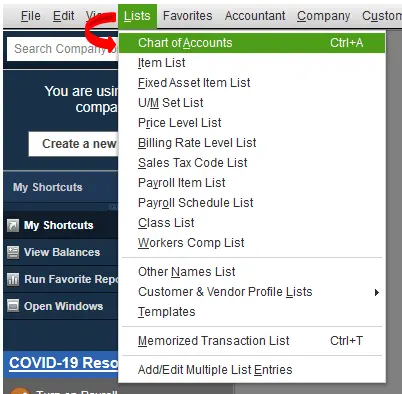
If archiving inactive accounts doesn’t work, move to the next method to resolve this issue.
Method 3 – Clean Up Company Data
You must clean up the company data to fix the QuickBooks company file too large issue. Follow the given steps correctly:
- You have to decrease fragmentation in the Database (DB) file. Too many DB File Fragments will compromise the performance of the computer.
- You must check the company file weekly to resolve any data damage.
- You must know that transaction log files (TLG ) keep track of changes to the file made since the last backup. Large TLG files can compromise the performance. It is crucial to make a manual backup with full verification to reset the TLG.
- Zero lines can also slow down performance, and if you launch cash basis reports with inventory, your Cost of Goods Sold (COGS) could be incorrect. Clear any detail lines with a zero quantity or price.
- Then clear the queues for the forms you need to email or print.
- Switch off search indexing in QBDT:
Important Note: You can still search in the company file when you switch off the automatic search index, but it will take longer than expected. It is advised to turn the automatic search back on if performance is not improving. - First, navigate to Edit and choose the Preferences option.

- Then, select the Search option, and choose the Company Preferences option.
- Next, uncheck Update Automatically and rename the .qbw.SearchIndex file.
- You can discover the .qbw.SearchIndex file in the same location as the company file. (For Example: C:\Users\Public\PublicDocuments\Intuit\QuickBooks\CompanyFIles\CompanyFileName.qbw.SearchIndex)
- First, navigate to Edit and choose the Preferences option.
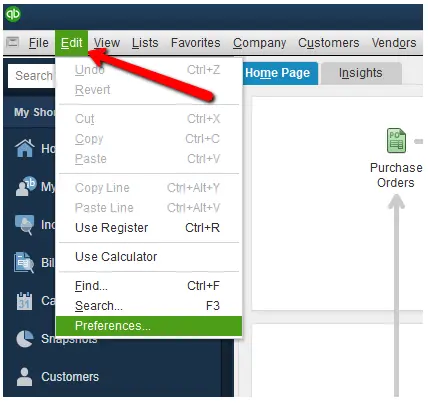
If this solution does not resolve the issue of the QuickBooks company file size too large, move to the next procedure.
Method 4 – Enhance the Speed of QB Payroll
If you work on improving the speed of the QB Payroll, you can also resolve the issue of the QB file too large. Perform the following steps:
- First, you need to run reports on an accrual basis instead of a cash basis. Cash basis reports can take more time as QB requires checking each transaction for payment status.
- If QB payroll launches slowly, sign out the other users and launch payroll in single-user mode.
- Then, close QuickBooks windows that are not in use right now.
- Switch to single-user mode if you are the only user in the data file.
- Next, reboot the workstations daily.
- After that, sign out of the data file when it is not in use and do not stay signed in to any company file overnight.
- Now, do long tasks outside normal hours. By this approach, they won’t use resources from other users.
- When the reports are launched, QB pulls in a lot of data. If you optimize how you launch reports and print reports, it can save a lot of resources and time. Here are some tips that you must follow:
- You must personalize and memorize long reports.
- It is advised to launch long reports in the off-hours, during lunch, overnight, or over the weekend.
- You must copy the company file to an unused workstation, set the driver to print directly to the printer, and print the report.
If this troubleshooting approach doesn’t work for you, move on to the next solution to resolve quickbooks company file too large.
Method 5 – Manage the Lists
You utilize the lists every time data is noted in QB. It is crucial to make sure that the lists are updated and sorted. Here, we will list the ways that you have to keep in mind as it can slow down the performance:
- The lists are reaching list limits.
- If the lists have many entries, you should use them.
- The lists have many sub-entries (such as subaccounts under accounts, jobs under customers, and subitems under items).
Go through this method. If this doesn’t work, move to the next method to resolve quickbooks company file too large.
Method 6 – Consider Upgrading to QuickBooks Desktop
You can also the resolve the issue of the QuickBooks company file too large by updating QuickBooks Desktop to the latest release. Implement this solution and get rid of this issue quickly.
Quick View Table – QuickBooks Company File Too Large
Let’s quickly view the crucial points of the issue of the QuickBooks company file too large that we discussed in this blog:
| Why do you face the issue of the QuickBooks company file too large? | Frequent transactions, attachments (receipts/contracts), temporary files, and old/unmanaged lists increase QuickBooks company file size over time. |
| Main Solutions | Use Condense Data utility, archive inactive accounts, clean up company data (TLG, logs, lists), optimize payroll/performance, and manage large lists. |
| Advanced Fix | Improve system performance practices or upgrade QuickBooks Desktop to the latest version if file growth continues to affect speed and stability. |
Conclusion
In this blog, we discussed the issue of the QuickBooks company file too large. We also covered the reasons why this issue happens. Also, we mentioned the method to resolve this issue. Resolve this issue and don’t compromise the performance of QB.
Frequently Asked Questions
What are the risks of using QB Condense Data Utility?
Despite its effectiveness, QuickBooks Condense Data Utility carries certain hazards. Condensed data permanently eliminates transaction-level information, making it challenging to obtain supporting documentation for audits or reviews. Your firm’s file may become ruined if mistakes are made during the condensing procedure, necessitating expert recovery. Additionally, if historical data is absent, QuickBooks-integrated third-party apps cannot function correctly. Always make a complete backup, test the condensed file in a different copy, and consult a specialist if your company is routinely audited to reduce hazards.
What is the ideal QB File Size?
Although there isn’t a perfect file size, most people agree that if a file is larger than 1.5GB, QuickBooks’ performance begins to deteriorate to the point that it becomes unstable or even unusable. File size guidelines are listed below:
Pro: 1GB
Premier: 1.5GB
Enterprise: 2GB

Alastor Moody is an Author at Asquare Cloud Hosting with experience in technical and functional writing. He loves travelling for adventure and fun.