
Last Updated on May 1, 2026
You may become unable to open the company file to access the financial records, due to QuickBooks error 6155 0. This issue blocks you from accessing the company file in the single-user and multi-user modes.
This issue comes with a warning message, stating “Error -6155, 0 An error occurred when QuickBooks tried to access the company file.”
The reasons for QuickBooks error 6155 0 could include data or program corruption, an outdated application, installation issues, etc. To troubleshoot error code 6155 0, first identify all the reasons it occurs, then follow the experts’ instructions to fix it. This is what we are going to explore in this blog. Therefore, continue reading.
What is QuickBooks Error 6155 0?
The QuickBooks error 6155 0, as mentioned earlier, is a part of the 6000 error series and usually appears on the screen when you try to open a company file in QuickBooks. This issue appears when you try to access a company file in QuickBooks. When this error appears, you will see a warning message that states:
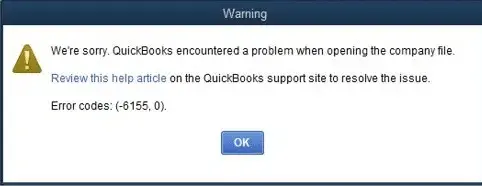
| “Error 6155, 0, an error occurred when QuickBooks tried to access the company file.” |
| “We’re sorry. QuickBooks encountered a problem when opening the company file.” |
The QuickBooks error 6155 0 usually shows up if there is an incomplete installation of QuickBooks Desktop, and you are running the verify/rebuild data to resolve the company file.
Possible Explanations Why You Encounter the QuickBooks Error 6155 0
These are the reasons why you can’t open the company file and run into the QuickBooks error 6155 0:
- QuickBooks Desktop software installation is incomplete or corrupt
- .ND and .TLG files are damaged or corrupt
- You are running an outdated version of QuickBooks Desktop
- There is an issue with the file path or the folder storing the company file
- QuickBooks Desktop is not correctly installed
- The folder permissions aren’t set correctly. For instance, QuickBooks doesn’t have read and write permission to the folder that stores the company file.
After understanding the reasons behind this issue, you must follow the next section to learn how to troubleshoot it.
Tried and Tested Ways to Troubleshoot QuickBooks Error 6155 0
To resolve QuickBooks error 6155 0, there are a few steps one needs to take. For example, firstly, it is crucial to keep your QuickBooks updated to the latest version. Moreover, you can run the File Doctor to fix company files and network issues and open firewall ports automatically. In this section, we will guide you through these troubleshooting methods one by one.
Method 1: Update the QuickBooks Desktop Application
First, update your QuickBooks Desktop to the latest release. This means that you get the recent component on your computer with enhanced performance, which also resolves bugs and errors. For that, follow the steps below:
- Open the QuickBooks Desktop application and go to the Help menu
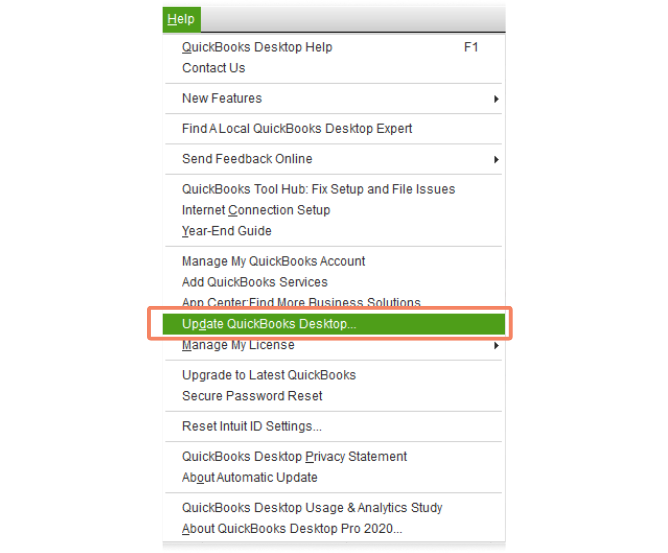
- From there, click on Update QuickBooks Desktop
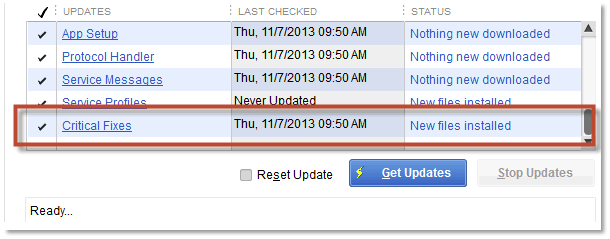
- Next, select the Update Now option, followed by choosing the Get Updates
- Now, access the downloaded file to install the update
- Finally, restart the system after installation
After implementing the steps above, check whether the issue is resolved. However, if the issue still persists, follow the next method.
Method 2: Run QuickBooks File Doctor
Run QuickBooks File Doctor, which will quickly repair common company and network issues. This is often crucial to resolve company file errors like 6155 0. However, to do so, you need to install QuickBooks Tool Hub first. After that, follow the steps below:
- Start by opening the QuickBooks Tool Hub
- Next, move to the Company File Issues tab
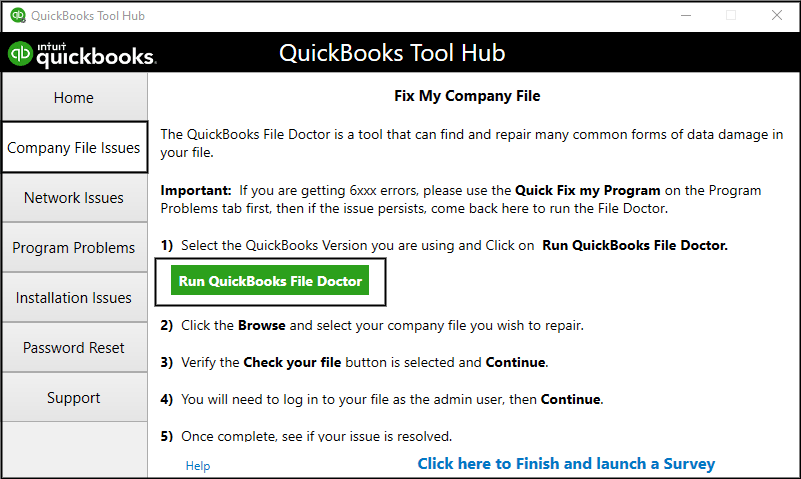
- Now, choose Run QuickBooks File Doctor. This tool can take up to one minute for the file doctor to open.
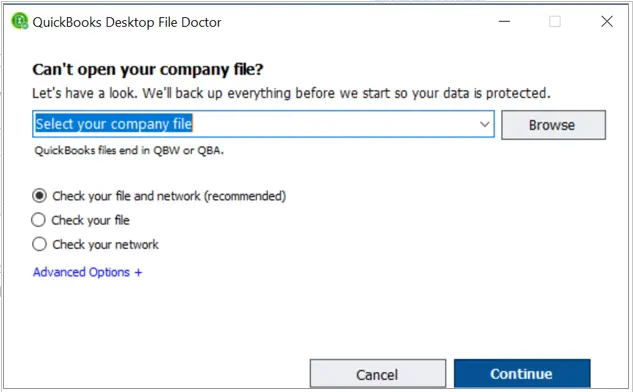
Note: If you can’t open QuickBooks File Doctor, search for QuickBooks Desktop File Doc and open it manually.
- Choose the company file from the dropdown menu in QuickBooks File Doctor
- After that, choose Check your file (middle option only) and then Continue
- Enter the QuickBooks admin password and then choose Next
After that, you need to wait for the scan time to complete. It will take up to 10-15 minutes. However, even after successfully resolving the issue, the scan may say it was unsuccessful.
Method 3: Rename the .ND and .TLG Files
If you fail to open the company file, the .ND and .TLG files might be damaged. However, it is quite easy to recreate them. The steps below outline how to do so:
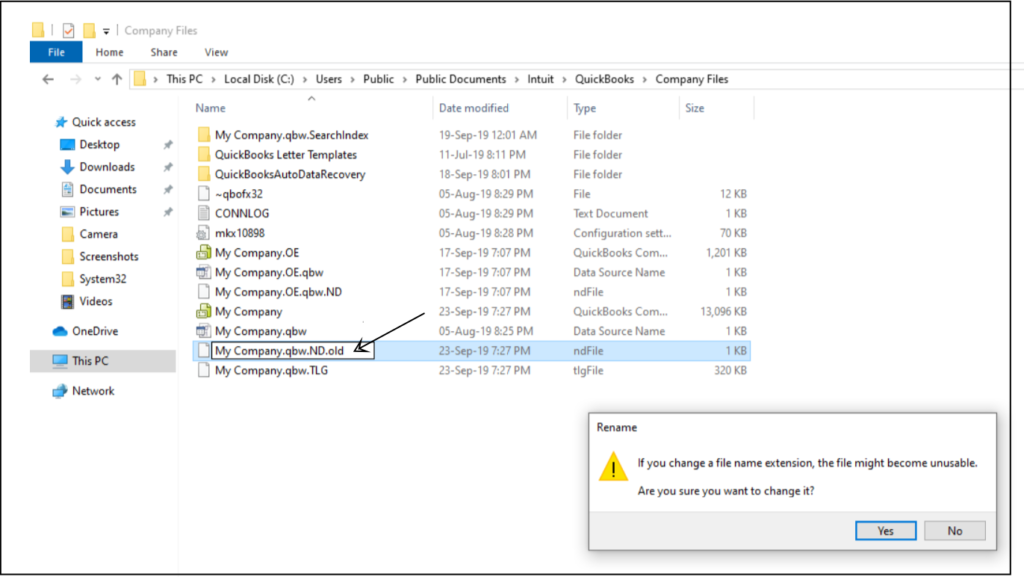
- Open the QuickBooks folder, the path for which is generally: C:\Users\Public\Documents\Intuit\QuickBooks\Company File
- Now, look for files with your company name but with extensions .nd and .tlg
- Right-click on each of them, add .old right after the extension without a space, and save the changes
- If asked whether you want to make the above changes, choose Yes to confirm
After you have the same for both .nd and .tlg files, launch QuickBooks Desktop and access the company file. If the error persists, move to the next method.
Method 4: Ensure QuickBooks Company File is Not Set as Read-Only
Let us check the properties of your QuickBooks company file to ensure that it is not set as read-only.
- Open the QuickBooks folder and right-click the company files you found trouble opening.
- From the list of options, choose Properties and then deselect the checkbox for Read-Only.
- Choose Apply, followed by OK.
Now, resume your QuickBooks operations to check whether the issue is resolved. However, if you are still facing the same issue, follow the next method.
Method 5: Set Up File Sharing Permissions
QuickBooks needs read and write permissions on the folder that stores the company file. Moreover, you should be signed in to Windows with admin rights, or the user you are logged in as needs read and write permissions to the company file.
If not, you will not be able to access the company file. Therefore, configure Windows file-sharing permissions. If this doesn’t help, and you are opening a company file in multi-user mode, configure the Windows and antivirus firewall.
Method 6: Restart the Workstations and Server
If you face QuickBooks error 6155 0 when opening the company file in multi-user mode, restart all the computers that have access to your company file.
Moreover, restart the server or computer hosting the company file. Finally, try accessing the company file. If the error persists, you might need to troubleshoot the multi-user mode issues in depth.
If you are in single-user mode and continue to have trouble opening the company file, start afresh with a clean installation of QuickBooks Desktop.
Method 7: Clean Install Your QuickBooks Desktop Application
Sometimes, due to the corrupted QuickBooks software. In such a case, you must clean install the QuickBooks Desktop. For that, carry out the steps below:
- Start by removing QuickBooks again
- Next, locate the Windows Start menu
- Browse for File Explorer to open it
- Locate and open the folder that holds the QuickBooks company files. This is usually the QuickBooks folder. It’s commonly in one of these locations:
- C:\ProgramData\Intuit\QuickBooks (year)
- C:\Users(current user)\AppData\Local\Intuit\QuickBooks (year)
- C:\Program Files\Intuit\QuickBooks (year)
- 64-bit version C:\Program Files (x86)\Intuit\QuickBooks (year)
- Right-tap the folder and choose Rename.
- Include the word “.old” at the end of the folder name. This prevents QuickBooks from accessing it when you reinstall
- Finally, reinstall QuickBooks Desktop
However, if you see an error when trying to rename the folder, follow the steps below:
- Start by right-clicking the Windows Task Bar, then choose Task Manager
- Navigate to the Processes tab
- Next, choose the Name column header to sort the list
- Choose the following processes and then End Process for each: QBDBMgrN.exe, QBDBMgr.exe, QBCFMonitorService.exe, QBW32.exe.
- Choose Yes if you see the message, “WARNING: Terminating a process can cause undesired results…”
After implementing the steps above, you must check whether the issue is resolved. We hope that the above-mentioned troubleshooting methods will help you resolve the QuickBooks error 6155 0.
A Quick Overview of QuickBooks Error Code 6155 0
You may go through the table below to see a condensed version of the information we have covered in this blog.
| Error description | QuickBooks error 6155 0 arises when you try to open the company file. This issue can damage your company file. |
| Common reasons | Incomplete or corrupted QB installation file, .nd and .tlg files are damaged, outdated QuickBooks Desktop version, file path issues, incorrectly installed QB application, or insufficient folder permissions. |
| Proven fixes | Update QuickBooks Desktop, run QB File Doctor, rename the .nd and .tlg files, verify the QB file is not set to Read-only mode, set up file sharing permissions, and restart the workstations and server. |
Conclusion
This was all about the QuickBooks error 6155 0 that arises when trying to access the company file. We have discussed all the potential reasons behind this issue. Moreover, we have listed the proven troubleshooting methods to help you overcome this problem. It is essential to carry out any method in the given order to avoid any further trouble. However, even after taking all the measures, if you are facing technical difficulty in resolving this issue, seeking expert help will be the best choice.
Frequently Asked Questions (FAQ’s)
Why do I see QuickBooks error 6155 0 when opening the company file?
When you try to open the QuickBooks company file, something might interrupt or prevent it, for instance, an outdated application, firewall blockage, unfavourable Windows and file sharing permissions, damaged .nd and .tlg files, etc.
How do I fix error 6155 in QuickBooks?
Here are some things that you can do to resolve error code 6155 0 when opening the company file:
1. Update QuickBooks Desktop: Update the QuickBooks Desktop application to ensure that you have the latest components and software enhancements and prevent incompatibility with Windows
2. Run QuickBooks File Doctor: Run the QuickBooks File Doctor to repair the company file and network issues, and open the blocked firewall port automatically
3. Rename the .ND and .TLG File: Rename the .ND and .TLG files to add .old after the original extensions, which will direct QB to create fresh copies of these files
4. Set Up File Sharing Permissions: Configure the file sharing permissions for the QuickBooks file to ensure the current Windows user and QuickBooks can read and write to it
5. Restart All the Computers: Restart all the computers that have access to the company file, including the workstations and the server, and then try accessing the company file
Can a faulty company file trigger the error 6155 0 in the QuickBooks application?
Yes, a faulty or corrupted QB company file can be a possible reason for the error 6155 0 in QuickBooks software. In such a case, you must run the Verify and Rebuild Data utilities in QuickBooks.
Can I fix the error 6155 0 by reinstalling the QuickBooks Desktop?
Yes, reinstalling the QB can fix the error if it is caused by damaged program files or an incomplete installation. Other than that, we advised you to back up the company file before uninstalling or reinstalling the software.

Kate is a certified public accountant (CPA) with expertise in various accounting software. She is technically inclined and finds passion in helping businesses and self-employed people carry out bookkeeping, payroll, and taxation without worrying about errors. Every once in a while, Kate loves to travel to far-off places and relax in the lap of nature.