
Last Updated on September 29, 2026
If you try to update QuickBooks Desktop or download the latest payroll tax table and the process suddenly stops, you may be looking at QuickBooks Error 12002. This is one of the 12XXX series of network connectivity errors — a group that also includes 12007, 12009, 12029, and 12031 — and it shows up when QuickBooks can’t reach Intuit’s servers within the expected time.
The error usually appears with this message:
“Error 12002: A network timeout that is preventing QuickBooks from accessing the server.”
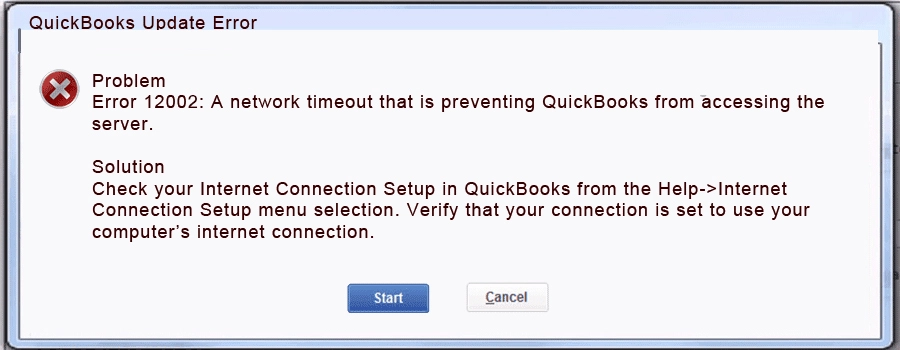
It’s almost always tied to your internet connection, firewall, or security settings rather than a problem with QuickBooks itself, which means it’s fixable without reinstalling anything. Below, we’ll walk through what causes it and five ways to resolve it, from the quickest checks to the more involved fixes.
Why Can’t You Update QuickBooks Desktop or Payroll?
Let us look at some reasons why you can’t update QuickBooks software or the tax table and run into QuickBooks error 12002 instead:
- Incorrect internet settings prevent QuickBooks from connecting to the server.
- The Windows or antivirus firewall doesn’t let QB connect to Intuit.
- It can be because of poor or unstable network connection or network timeout.
- A third-party program or antivirus interrupts QB programs that are responsible for updates or blocks them from running.
- The QB program or Windows registry is damaged or missing crucial installation files or Microsoft components.
Once you are aware of what causes the error, you can go about fixing it.
Note: QuickBooks Error 12007 occurs when QuickBooks cannot establish an internet connection, usually due to network timeout issues, firewall restrictions, or incorrect SSL and internet settings, preventing successful payroll or software update downloads.
5 DIY Troubleshooting Methods to Get Rid of QuickBooks Error 12002
As we can see, various factors can cause QuickBooks error 12002. This is why we need to troubleshoot multiple aspects of the application, the operating system, and the computer to ensure we resolve the error at its root cause. However, before you begin, update your operating system to the latest version and backup up your company file.
Method 1: Ensure a Strong and Stable Internet Connection
A poor or unstable network connection can cause various errors when attempting to update QuickBooks. Therefore, check your internet connection and make sure it is strong and stable.
Try opening your bank or financial institution’s website in a browser and observe how the internet works. If it’s slow or fluctuating, talk to an IT expert or network provider.
Method 2: Review Default Internet Settings on Your Computer
Let us make sure that QuickBooks is set to access the internet using the system connection settings, and then add Intuit sites as trusted.
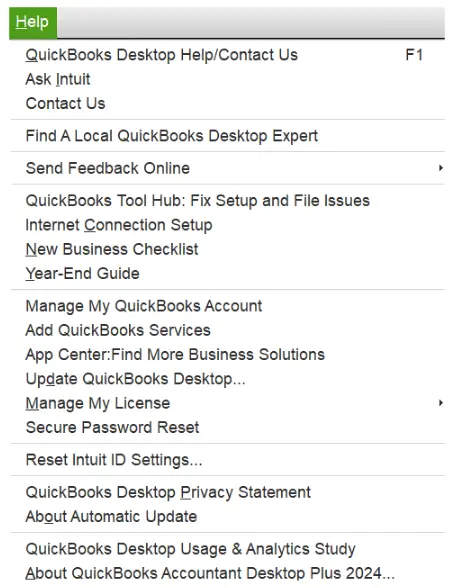
- Open the Help menu in QuickBooks Desktop
- Now, tap on Internet Connection Setup
- Select the option to Use my computer’s internet connection settings to establish a connection when this application accesses the Internet
- Now, go to Internet Options and add Intuit as a trusted site
Finally, try updating QB Desktop or QB Payroll. If you encounter error code 12002, proceed to the next method.
Method 3: Check Windows Firewall and Antivirus Settings
QuickBooks requires access to specific firewall ports to connect to the Internet and complete the update. One possibility is that the Windows firewall might not allow QuickBooks to access it. Configure the Windows firewall and create QuickBooks exemptions for it.
Moreover, you want to ensure that the antivirus or security software (if installed on your computer) doesn’t prevent QuickBooks programs from running in the background. The antivirus includes a firewall as well, and if you already have antivirus software installed on the system, you will need to create QuickBooks antivirus exemptions. Finally, you can resume the QuickBooks update.
Method 4: Install QB Updates in Selective Startup Mode
A third-party program can interfere with QuickBooks updates. However, when you boot your system in selective startup mode, you can eliminate that. Here is how to start your computer in selective startup mode:
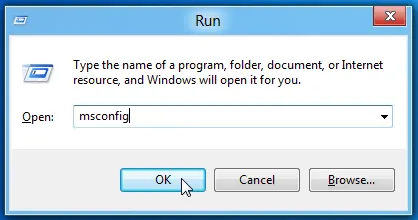
- Press Windows + R on your keyboard to bring up the Run window, then enter msconfig into the Run box, and choose OK
- From the General tab, choose Selective Startup and Load system services
- Go to the Services tab and mark the checkbox for Hide all Microsoft Services
- Tap on Disable All and then deselect the checkbox for Hide all Microsoft Services
- Double-check and make sure that the Windows Installer checkbox is marked in the list of services. If it’s not, select it
- Choose OK and then Restart
Carry out QuickBooks updates, and once you are done, switch back to normal mode. Here is how to boot your system into normal mode:
- Press Windows + R to open the Run dialog, then enter msconfig in the Run box. Choose OK
- Choose Normal Startup from the General tab and hit OK
- Finally, restart the computer
However, if this doesn’t resolve QuickBooks error 12002, try the next solution.
Note: QuickBooks Error 12157 occurs when QuickBooks fails to connect securely to Intuit servers, often due to incorrect SSL settings, firewall restrictions, or network connectivity issues, preventing successful payroll and software updates.
Method 5: Repair QuickBooks Using the Tool Hub
The payroll update error can stem from damaged program components, a corrupt Windows registry or Microsoft components, or an incomplete installation.
QuickBooks Tool Hub comes packed with various tools to resolve program and installation issues with the software. Therefore, download and install the QB Tool Hub. We will now troubleshoot the program issues, then the installation issues.
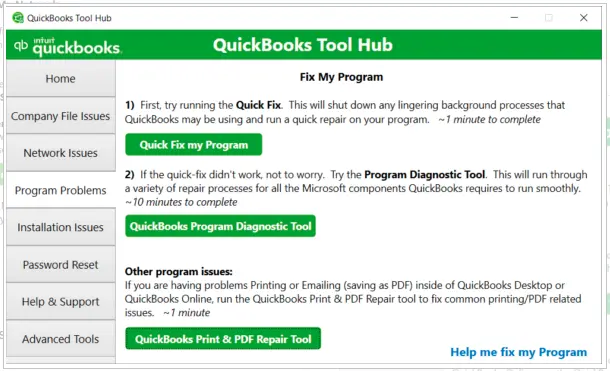
- Open QB Tool Hub, and go to Program Problems
- Tap on QuickBooks Program Diagnostic Tool
- Give the Program Diagnostic Tool a while to repair the QB program
- Next, follow the steps below to repair QB installation issues
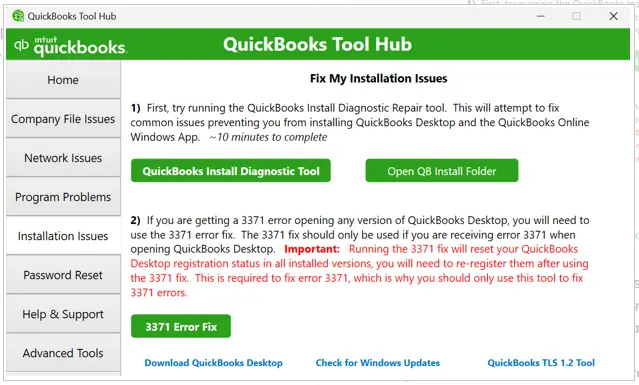
- Open QB Tool Hub, and go to Installation Issues
- Tap on QuickBooks Install Diagnostic Tool
Let the tool take some minutes to appear and start running. The repair process will take longer than you expect, perhaps 10 to 20 minutes. Let it complete, and then restart the system.
Furthermore, we hope that by implementing the above solutions, you will be able to resolve error 12002 in QuickBooks Desktop.
A Quick Overview of Error Code 12002 in QuickBooks Desktop
| Error description | Error 12002 occurs when the QB application can’t connect to Intuit servers due to a timeout. Issues with the internet or network settings usually cause it. |
| Common reasons | Incorrect internet settings, firewall security settings, poor network connection, network timeout, damaged Windows registry, or installation issues. |
| Working fixes | Check and maintain a stable internet connection, verify internet settings, configure Windows firewall settings, install the QB application in Selective Startup mode, and use the QB Tool Hub. |
Conclusion
This is why you encountered QuickBooks error 12002 when updating the desktop application or payroll. Furthermore, we discussed various methods to troubleshoot it. However, if nothing works, you can start afresh with a clean installation. Often, the reasons for a QuickBooks error can be deeply hidden in the software, Windows components, or system settings. Therefore, we recommend contacting a QB expert at +1 (855) 510 -6487, who can resolve the issue for you.
Frequently Asked Questions (FAQ’S)
How is Error 12002 related to Errors 12007, 12009, 12029, and 12031?
All of these are part of the 12XXX series of Windows network connectivity errors reported through the Win32 Internet API. They share the same underlying causes — internet settings, firewall restrictions, or SSL/TLS issues — and generally respond to the same fixes.
Does resetting QuickBooks updates help fix Error 12002?
Yes, it’s worth trying. Go to Help > Update QuickBooks Desktop > Update Now, check the Reset Update box, and click Get Updates to force a fresh download.
Can error 12002 occur on multiple systems?
Yes, if multiple systems share the same network, firewall, proxy, or internet configuration, the error can appear on all of them. Resolving network-level settings usually resolves the issue across all systems running QB Desktop.
Can a VPN or proxy server cause Error 12002?
Yes. A VPN or proxy can block QuickBooks from reaching Intuit’s servers. Disable it temporarily and retry the update.

Kate is a certified public accountant (CPA) with expertise in various accounting software. She is technically inclined and finds passion in helping businesses and self-employed people carry out bookkeeping, payroll, and taxation without worrying about errors. Every once in a while, Kate loves to travel to far-off places and relax in the lap of nature.