
Last Updated on February 5, 2026
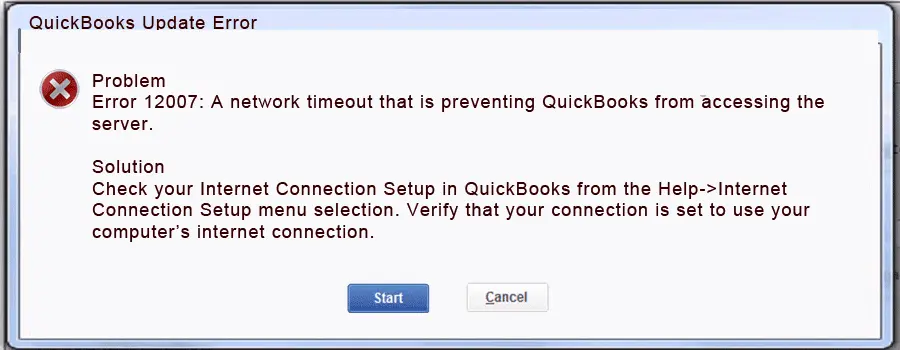
At times, while downloading the payroll or updating QBDT, you might end up with QuickBooks error 12007. It typically occurs when the user cannot connect to the internet. The reason could be misconfigured QuickBooks settings or an improperly configured internet connection. Moreover, you might encounter this error due to browser, antivirus, or firewall issues. These messages might appear on your screen, accompanied by the error code:
| “Problem Error 12007: A network timeout that is preventing QuickBooks from accessing the server.” The error message comes along with a solution: “Check your Internet Connection Setup in QuickBooks from the Help> Internet Connection Setup menu selection. Verify that your connection is set to use your computer’s internet connection.” |
There are additional troubleshooting methods that can help you resolve this error in QB.
If you need any more help with your payroll update in QuickBooks, feel free to get in touch with our experts at +1(855)-510-6487.
Reasons Behind QuickBooks Error Code 12007
Several reasons, such as misconfigured QuickBooks settings, can evoke QuickBooks error 12007. Below, we have mentioned other possible reasons as well:
- You may encounter QuickBooks update error 12007 due to an issue with the internet connection, such as frequent outages or slow performance.
- Due to the restrictive settings of the Windows firewall or antivirus installed on your computer, you won’t be able to install the latest updates of the QuickBooks application.
- An incomplete QuickBooks Desktop installation on Windows can trigger the error.
- Misconfigured SSL settings.
- Your network might have experienced a timeout during the QuickBooks payroll download request.
Move on to the next section to understand the things to ensure when fixing this issue.
Things to Keep in Mind Before You Fix the QuickBooks Error 12007
When you face an update error in your system, and you want to fix it, ensure to check the following points.
- Maintain a stable and secure internet connection.
- Install the latest updates for the Windows OS.
- Enable the SSL and TLS options for secure access.
- Check if the antivirus is blocking the QuickBooks operations.
Now, let’s move ahead with the methods that will help you fix the error in your system.
10 Troubleshooting Methods To Fix QuickBooks Update Error 12007
As discussed, error code 12007 hampers the update process, and thus, you’re unable to use the latest features. To eliminate all such issues, below we have listed some of the effective troubleshooting methods that can help you fix the update error:
Solution 1: Use the QuickBooks Tool Hub
The first step is to download and install the QuickBooks Tool Hub. Then, go through the steps as mentioned below:
- Launch the Tool Hub.
- Go to the Program Problems option.
- Then, click on Quick Fix my Program.
Access the QuickBooks application, and if the issue persists, you can use another tool present in the tool hub.
- Go to the Tool Hub.
- Then, click on the Installation Issues section.
- Tap on the QuickBooks Install Diagnostic Tool.
- Now, let the tool run and fix the issue that you are facing.
If the issue persists, move on to the next method to fix QuickBooks error 12007.
Solution 2: Run the TLS 1.2
When you are unable to download the update for your QuickBooks Desktop, follow the steps below:
- Run the tool hub in your system.
- Go to the Installation Issues tab.
- Choose the QuickBooks TLS 1.2 Tool from the bottom.
- Tap on OK to access it.
- Then click Yes to accept the EULA.
- Tap on Run.
- Once the tool has completed the run process, click on Exit.
Additionally, ensure you can access secure websites outside QuickBooks Desktop. It might include the sign-in page of your financial institution.
Solution 3: Verify the Internet settings
At times, issues in Internet settings can prevent you from installing the latest updates to resolve QuickBooks error 12007. Thus, follow the steps below to check your browser settings:
- Close the QuickBooks Desktop application and open your browser.
- Go to Tools, then click Internet Options.
Note: If you’re unable to find the Tools menu, then press the Alt key on the keyboard.
- Navigate to the Security tab and click on the Globe icon.
- Now, go to the Connections tab, select Never Dial a Connection if you do not use the dial-up node (DUN) on the system, and click OK.
- Further, click LAN Settings and select the automatically detected settings.
- Additionally, mark the “Use a Proxy Server” checkbox.
- Also, do not clear the Use a Proxy Server option if the port is not 80. However, if it’s port 80, clear the checkbox for testing, then click OK.
- Navigate to the Advanced tab and select Restore Advanced Settings. Further, go to Settings and select Use TLS 1.2. Further, click on OK.
- After that, close the Internet and restart your computer.
- Lastly, open QuickBooks Desktop and try updating again.
Aren’t you able to resolve QuickBooks error 12007 by following the above-given methods? Well, if that’s so. You can follow the procedures.
Note: QuickBooks Payroll Internet Connection Read Error usually occurs due to unstable internet settings, firewall restrictions, or outdated software, preventing payroll updates and online features from functioning properly.
Solution 4: Run the System File Checker
The System File Checker scans and repairs corrupted files on your system. To do so, follow the steps below:
- Hit Windows + R on the keyboard.
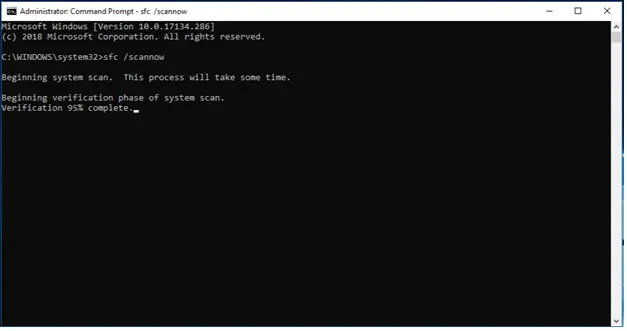
- In the Run dialog box, search for and run sfc /scannow.
- Now, let the scan run and fix the issue in your system.
After completing the steps, restart your system and check whether the issue persists.
Solution 5: Manually configure the firewall settings
If you have installed multiple versions of the QuickBooks Desktop application on the same computer, then you have to perform the steps below for each version:
- Click the Windows icon, then type Windows Firewall in the search bar. Then, open Windows Firewall and select Advanced Settings.
- Now, right-click Inbound Rules and select New Rule> Port> Next.
- Further, make sure to select TCP.
- In the Specific local ports field, enter the specific ports needed for your QuickBooks year version:
- QuickBooks Desktop 2020: 8019, XXXXX.
- QuickBooks Desktop 2019: 8019, XXXXX.
- QuickBooks Desktop 2018: 8019, 56728, 55378-55382.
- QuickBooks Desktop 2017: 8019, 56727, 55373-55377.
- Click on Next after entering your port number.
- After that, click Allow the Connection, then click Next.
- Make sure to mark all the profiles, and then click Next.
- To proceed, create a rule and name it QBPorts(year).
- Lastly, click on Finish.
Note: You need to follow the same steps to create outbound rules. However, in the steps above, you need to select Outbound Rules rather than Inbound Rules.
If there is an antivirus or security software installed on your computer, you need to create QuickBooks exceptions to it to make sure it doesn’t block QB programs or quarantine them. If this doesn’t resolve the 12XXX series error, move to the next step.
Solution 6: Clean Install QuickBooks Desktop
When you are unable to update the application or even payroll updates, try to clean install QuickBooks Desktop. Reinstall the application from scratch to avoid the QuickBooks error 12007 in your system.
Solution 7: Access Windows in Safe Mode
The Windows safe mode will allow you to reduce the system interruptions when you are trying to perform the update process.
- In the search bar, look for and access System Settings.
- Then go to System and click on Recovery options.
- Lastly, click on the Restart Now option.
- Now, on the Options screen, choose Troubleshoot.
- Tap on Advanced options, then Startup Settings.
- Choose Restart.
- Once the restart is done, hit F4 for Safe Mode or F5 for Safe Mode with Networking.
These steps will help you to launch Windows in safe mode and overcome the QuickBooks error 12007.
Solution 8: Verify the System Date and Time
If your device is using incorrect date and time settings, your QBDT may encounter this error. Fix the date and time by following the steps below:
- Tap on the Clock on the taskbar.
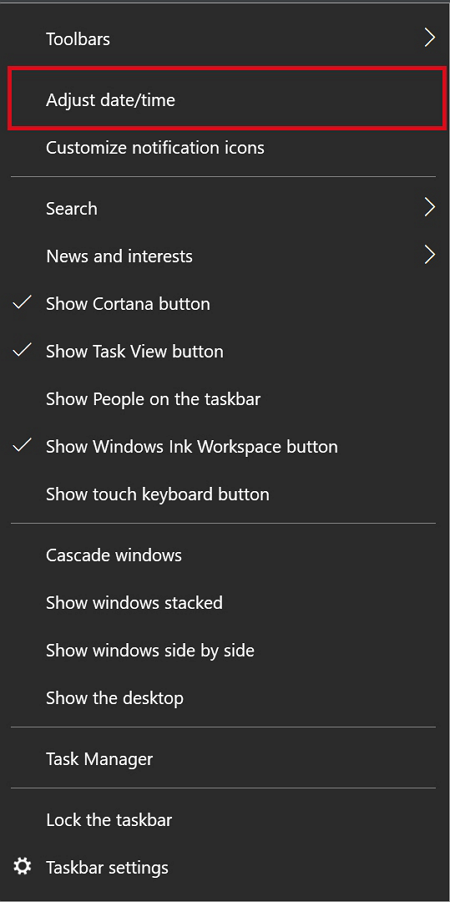
- Choose the Adjust Date/Time options.
- Next, click on the Change Date and Time section and fix it according to your timezone.
- Hit OK to save the changes.
Now, restart the system to check if the issue persists.
Solution 9: Use the Verify and Rebuild Tool
When your system is having data integrity issues, you might face the QuickBooks error 12007 in your system. To fix it, follow the steps as mentioned.
- Head to the Window option.
- Then choose the Close All option.
- Move to the File section and select Utilities.
- Choose the Verify Data.
- QuickBooks detected no issues with your data. Your data is clean, and you do not need to take any further action.
- If the message “Your data has lost integrity” appears, then repair the file’s data integrity.
Now, head to the rebuild company data section.
- Head to the File menu.
- Move to the Utilities tab.
- If QuickBooks asks for a backup, then create a backup.
- Tap on OK.
- Once the backup is completed and saved, QB will rebuild the company file.
- When you see the pop-up message “Rebuild has completed,” tap OK.
This built-in tool will help you resolve the payroll update error.
Solution 10: Update the Windows
When using an older OS version, the issue is visible. Therefore, updating to the latest version will help you resolve the error.
- Access the Windows Start menu.
- Now, tap on Update and Security options.
- Then click on Windows Update.
- Tap on the Check for Updates option.
- Now, click on the Download and Install option to get the latest version.
Lastly, restart the system and check if the QuickBooks error 12007 occurs.
Quick View Table for QuickBooks Error 12007
Here’s a quick overview of what we’ve discussed so far regarding this issue in your system.
| Description | The QuickBooks error 12007 occurs when the software tries to connect to the internet during an update. |
| Causes | There are multiple reasons behind the error in the system, including issues with the internet connection, restrictive settings of the Windows firewall or antivirus, an incomplete QuickBooks Desktop installation, misconfigured SSL settings, or the network might have experienced a timeout during the QuickBooks payroll download request. |
| Ways to Fix | You can overcome the error by using the QuickBooks Tool Hub, running the TLS, verifying the internet settings, running the system file checker, configuring the firewall settings, performing a clean install of the QuickBooks Desktop, accessing Windows in safe mode, using the verify the rebuild tool, and updating the Windows OS. |
Conclusion
The QuickBooks error 12007 is an error that occurs when you are trying to establish an internet connection during an update. In this blog, we have outlined the key reasons and troubleshooting steps you need to know when this error occurs. If you encounter any internet-related issues during your QuickBooks update, feel free to contact our experts at +1(855)-510-6487.
Frequently Asked Questions (FAQs)
What are the causes behind the QuickBooks error 12007 in my system?
There are different reasons behind the error 12007 in your QuickBooks Desktop.
1. The internet is not stable and secure.
2. Incorrect internet settings.
3. Firewall is blocking QuickBooks operations.
4. SSL misconfiguration.
How to print the P60 form when the error 12007 occurs in QuickBooks?
If the error occurs in your system and you wish to print the P60 form, then review the following:
1. Print a duplicate form on plain paper.
2. Compare the printout with a preprinted form to verify alignment.
3. Perform the necessary adjustments to print the file in the specified format.
What are the key things to ensure to prevent QuickBooks errors in my system?
There are certain key points to avoid QB errors in your system.
1. Use a stable and reliable internet connection.
2. Ensure to keep your QuickBooks and Windows versions updated.
3. Check for compatibility issues.
4. Allow necessary permissions.

Kate is a certified public accountant (CPA) with expertise in various accounting software. She is technically inclined and finds passion in helping businesses and self-employed people carry out bookkeeping, payroll, and taxation without worrying about errors. Every once in a while, Kate loves to travel to far-off places and relax in the lap of nature.