
Last Updated on June 18, 2026
QuickBooks Desktop, though a great timesaver and useful accounting software, is not free from errors. Often, you might have no resort but to reinstall QuickBooks and start fresh. However, simple reinstallation will leave some files that will trigger the error again during installation. This is why you need to QuickBooks Clean Install Tool.
In this guide, we will explore how you can QuickBooks Desktop clean install so as to carry on error free accounting and bookkeeping operations.
What is QuickBooks Clean Install Tool?
QuickBooks Clean Install Tool used to be of great aid as it helped resolve multiple application issues. That’s why it was also known as a repairing tool, as it fixes the unrecoverable problems in the application. Well, it wasn’t challenging to use the QuickBooks Clean Install Tool; it’s a relatively simple process.
However, QuickBooks Clean Install Tool is no longer in QuickBooks Tool Hub anymore. This means now you need to perform the same steps manually. Do not worry, though, as in this guide, we will show you how to manually clean install QuickBooks Desktop and rename the installation folders.
An Overview of QuickBooks Clean Installation
When it comes to resolving company file issues, the Clean Installation QuickBooks Desktop plays a crucial role.
A clean installation can help you resolve the QuickBooks company file is not found error. It can also resolve issues related to display and template, unrecoverable errors in QuickBooks Desktop, run-time errors, etc. There are three steps involved in the clean installation of QuickBooks Desktop.
- Uninstall the QuickBooks application.
- Rename Installation Folder.
- Reinstall the QuickBooks application.
You will not lose any company data when clean installing QuickBooks Desktop, given you keep the backup company file safe.
Also Read: QuickBooks Error 80070057 occurs when the company file cannot open due to incorrect file permissions, damaged data, or improper network configuration.
Backup Your Company Data Before Reinstalling QuickBooks Desktop
Before you clean install QuickBooks Desktop, you need to create a backup of your company data.
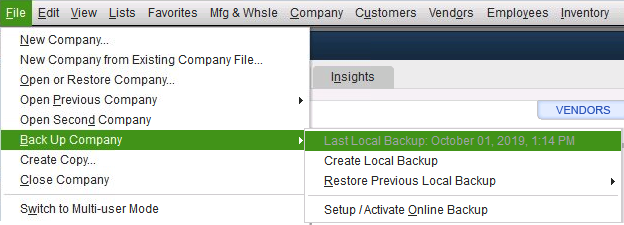
1. Create a Backup of Your Company File
Here is how to backup your company file in QuickBooks Desktop
- Launch QuickBooks Desktop by double-clicking the desktop shortcut. This will open the application for you.
- Now, head to the “File” menu and then go to the “backup company” option.
- You can choose between “online backup” or “Local Backup”. We recommend you choose “Local Backup”.
- Click on the “Next” button, and follow all the instructions that show up on the screen.
- Allow the backup to complete.
However, if you face an error in backing up your company file, verify and rebuild data to resolve damage.
A Stepwise Method to Clean Install QuickBooks Desktop
Before you move ahead to clean install QuickBooks Desktop, keep the setup or installation file, license number, and product key handy. Additionally, log in as a system admin, too.
Step 1: Uninstall the QuickBooks Desktop program
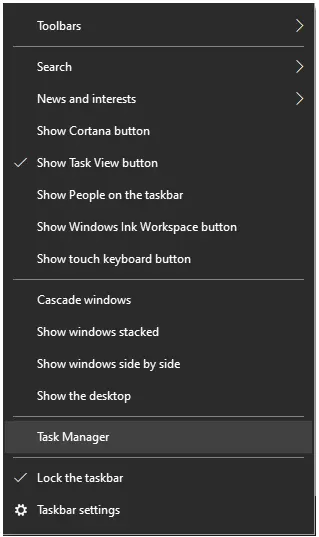
- Right-click on the Taskbar, present at the bottom.
- Open the Task Manager.
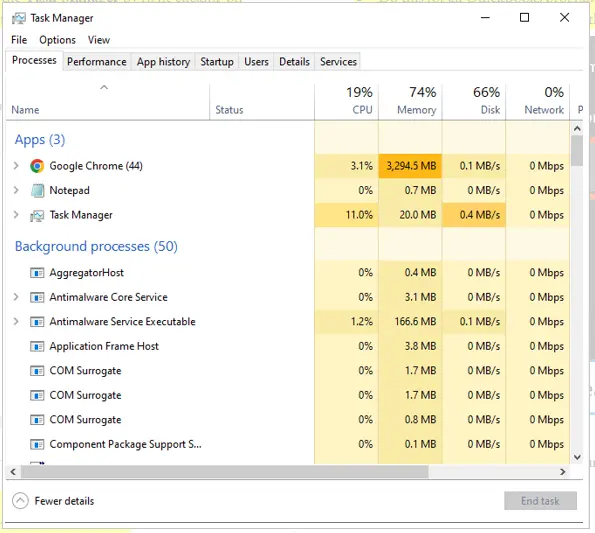
- Head over to the Processes tab.
- Go to QuickBooks and right-click on them.
- Select End Processes.
- You will have to do this for all the programs.
- Search for the Control Panel in the search bar.
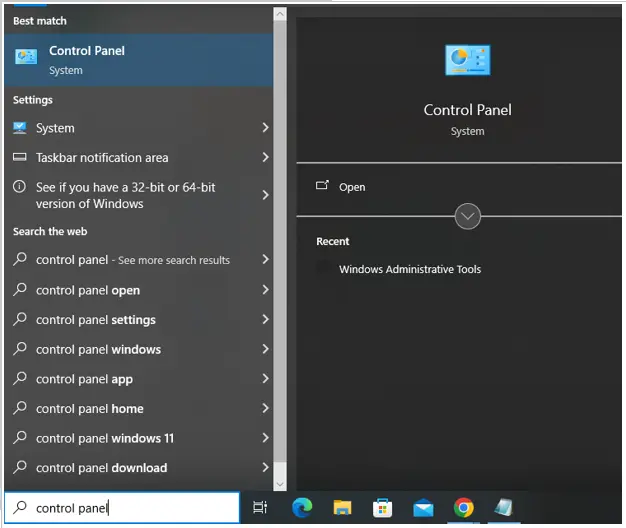
- Tap on the QuickBooks Desktop from the list of programs that is seen on the screen.
- Move forward and right-click on QuickBooks and then select Uninstall a program.
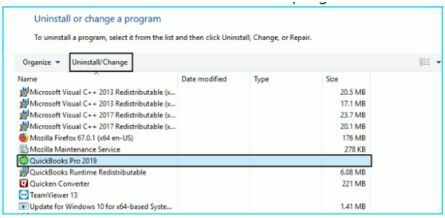
Step 2: Manually Rename the Installation Folder
Now, you will need to rename installation folders before you go to reinstall QuickBooks. Below are the steps to rename the installation folder.
- Go to the Start menu.
- Then, search for the folder where you stored the company files. This could be present in one of the following:
- C:\ProgramData\Intuit\QuickBooks (year)
- C:\Users(current user)\AppData\Local\Intuit\QuickBooks (year)
- C:\Program Files\Intuit\QuickBooks (year)
- For 64-bit version users, C:\Program Files (x86)\Intuit\QuickBooks
- After you have found the desired folder, right-click on the folder and choose Rename.
- Also, add the .old at the end of the folder name. Doing this will prevent QB Desktop from trying to open it when you reinstall it.
After all the above steps, you are all set to reinstall QuickBooks Desktop, but in case you see an error message saying or indicating denial of access while renaming the folder, or that the application is running in the background. See what to do in this case:
- Open the Task Manager by pressing Ctrl+Shift+Esc.
- Alternatively, you can search for the Start menu manually.
- Head over to the Start tab.
- At this point, you need to choose the name column header to order the list.
- Next, you will have to search for these in the processes tab: QBDBMgrN.exe, QBDBMgr.exe, QBCFMonitorService.exe, Qbw32.exe.
- Choose Yes if you receive an error message saying “Terminating a process can cause undesired results.”
Step 3: Reinstall QuickBooks Desktop
- For this, you must have the installation CD or the setup file. Additionally, you need the license information and the product key.
- Next, follow the instructions displayed on the screen.
- If you have bought QuickBooks from the official website of Intuit, log in and download the setup of QBDT.
- After installing the setup, you will need to enter the license number and product number.
- Hit Next.
- Then, you need to opt for the installation that you want to go ahead with.
- Choose Next, followed by Install.
The above steps are all about running the Clean Install Tool in QuickBooks Desktop. Move ahead to the guide and learn how to clean install QuickBooks Desktop on Mac.
How to Clean Install QuickBooks Desktop on Mac
From the section, it would be clear how to clean install QuickBooks, but the way to do it on Mac varies slightly. See the steps to clean install QuickBooks Desktop on Mac.
If the problem is not fixed by reinstalling QuickBooks, you must do a clean install. This will remove QB with the installation files that were left behind to reinstall the program from a clean installation slate.
Step 1: Uninstall QuickBooks Mac Desktop
- Remember, before you uninstall QBDT, you should have your QuickBooks Desktop download file or the installation CD and license numbers handy.
- Close the QuickBooks program.
- Move to the Finder menu.
- Choose Applications.
- Now, drag the QuickBooks icon to the Trash.
Step 2: Remove QuickBooks PLIST Files
You will have to remove both PLIST files from both the User and the System folder.
User PLIST:
- Go to the Finder menu.
- Press the Option key for a while and then choose Library.
- Open the Preferences folder.
- Here, you need to search for the PLIST files that contain com.intuit.QuickBooks20XX, then move them to the Trash. Note: XX is the version of QuickBooks you are using on your device.
- Finally, clean the trash.
System PLIST:
- In the new Finder window, open the Macintosh HD.
- Head over to the Library.
- Choose the Preferences folder.
- Here, you need to search for the PLIST files that contain com.intuit.QuickBooks20XX, then move them to the Trash. Note: XX is the version of QuickBooks you are using on your device.
- If you are unable to see the Macintosh HD icon in the Finder, you can:
- Move to the Finder > Preferences > General Tab.
- Put a mark on Hard disks.
- Then, empty the trash.
Step 3: Restart your device
You need to restart your device to ensure the changes you made are being properly applied. After it is done, move to step 4.
Step 4: Reinstall QuickBooks Desktop for Mac
- Find your license and product numbers and download your QuickBooks Desktop for Mac version, or use the CD installer.
- Close all the applications and open the installer or insert the disc into the Mac CD drive.
- The QB installation window opens automatically.
- After this, you will have to drag the QuickBooks icon to the Applications folder.
- Again, the Application folder opens up automatically.
- Select the QuickBooks icon to open the application.
Now, you know how to download and install QuickBooks Desktop for Mac using Clean Install. Let’s read the blog further.
Key Benefits of Using QuickBooks Desktop Clean Install Utility
There are a variety of advantages that the Clean Install Tool provides in order to keep QuickBooks smooth.
- Removes corrupted install files
- Eliminates conflicts in software
- Fixes problems with the QuickBooks installation.
- Fixes bugs with updates.
- Provides a new environment to install QuickBooks.
- Improves performance and stability of the software.
Limitations of the QuickBooks Clean Install Tool
However, along with benefits, it also has some drawbacks. Below is a list of some of them:
- It doesn’t repair corrupted business documents.
- It cannot resolve network issues.
- Manual reinstallation is required.
- Product and license information must be available.
- You might still need to troubleshoot Windows-related issues.
When Should You Clean Install QuickBooks Desktop?
You should consider a clean install when facing an installation issue, such as:
- When you end up with installation errors.
- When you are unable to open your company file, standard repair tools have failed.
- When QuickBooks fails to launch or displays messages indicating missing important installation components.
- When QuickBooks does not respond, freezes, or crashes unexpectedly.
Quick Overview Table: Clean Install QuickBooks Desktop
A briefing of the complete information using the table makes things easier to understand and implement instructions. Here we have a breakdown of the blog in a tabular format:
| Explain the QuickBooks Clean Install Tool | QuickBooks Clean Install Tool is a utility accessed from the QuickBooks Tool Hub that helps perform a clean installation of the program and run it seamlessly. |
| Advantages and Limitations | Benefits: 1. Removes corrupted install files 2. Eliminates conflicts in software 3. Fixes problems with the QuickBooks installation. 4. Fixes bugs with updates. Limitation: 1. It doesn’t repair corrupted business documents. 2. It cannot resolve network issues. 3. Manual reinstallation is required. 4. Product and license information must be available. |
| When to Clean Install QuickBooks | When you encounter installation errors, are unable to open your company file, and standard repair tools have failed, QuickBooks fails to launch or displays messages indicating that important installation components are missing. |
| How to Clean Install QuickBooks Desktop | Step 1: Uninstall the QuickBooks Desktop program Step 2: Manually Rename the Installation Folder Step 3: Reinstall QuickBooks Desktop |
| How to Clean Install QuickBooks Desktop on Mac | Step 1: Uninstall QuickBooks Mac Desktop Step 2: Remove QuickBooks PLIST Files Step 3: Restart your device Step 4: Reinstall QuickBooks Desktop for Mac |
What You Should Remember
In conclusion, we can see that the QuickBooks Clean Install Tool really helps users perform a clean installation of the program so that the application runs smoothly and prevents them from getting hit by installation and other issues. We covered topics like the benefits and limitations of using this utility. Moreover, we went through the prerequisites that need to be taken care of before performing the clean installation. Along with these, we have provided you with the steps to clean install QuickBooks Desktop for Mac.
Frequently Asked Questions (FAQ’S)
What happened to the QuickBooks clean install tool?
QuickBooks Clean Install Tool is no longer in the tool hub. This means you need to follow the procedure involved in clean installation manually. This includes uninstalling QuickBooks Desktop, renaming installation folders manually, and then reinstalling QuickBooks Desktop.
How do you perform a clean installation of QuickBooks Desktop?
To perform a clean installation of QuickBooks Desktop, first, you need to uninstall QuickBooks Desktop. Once done, rename the folder that contains the QuickBooks installation file. Finally, install QuickBooks Desktop on your computer once again. Only uninstall QuickBooks Desktop after finding your QuickBooks license and product information and keeping it ready. If you face an error, go through the detailed instructions given in this guide.
How do I clear QuickBooks desktop and start over?
To get rid of everything that might be causing issues and technical errors, you can clean install QuickBooks Desktop. To do so, you will need to uninstall QuickBooks Desktop, rename the installation folder, and reinstall QuickBooks. However, before you uninstall QuickBooks Desktop, make sure to have the setup file, product key, and license information ready.
Can I uninstall QuickBooks and reinstall without losing my data?
Yes, you won’t lose your company file data by uninstalling and reinstalling QuickBooks Desktop. Moving the QuickBooks installation doesn’t move the company files. Moreover, your company files must be copied to a new location separately.
How to clean install QuickBooks?
For this, you can use the QuickBooks Install Tool from the QuickBooks Tool Hub. This will uninstall the program, rename the installation folder, and then reinstall QuickBooks.
How can I completely uninstall QuickBooks from my computer?
To completely remove QuickBooks from your device, run the standard Windows uninstaller and then delete the remaining Intuit installation and temporary folders manually.

Oriana Zabell, a professional cloud engineer, has over three years of experience in desktop, online QuickBooks support and troubleshooting. She is currently working as a cloud hosting consultant with Asquare Cloud Hosting. She loves to read and write about the latest technologies such as cloud computing, AI, DaaS, small businesses, manufacturing. When not writing, she is either reading novels or is indulged in a debate with movie fanatics.