
Last Updated on February 11, 2026
QuickBooks is one of the most powerful and advanced accounting software solutions, but it is not error-free. The most common QB issues among all are company file errors, such as QuickBooks Error 6190 -816. Like all 6000-series errors, QB error 6190 is directly related to a malfunction in the company file. This error usually occurs when multiple users try to open the company file in a single-user code.
However, the reasons for this error aren’t limited to that. QuickBooks error code 6190 can also stem from damage to the company file or network issues. In this blog, we’ll explore what Error 6190-816 means, why it occurs, how to recognize it, and how to fix it with step-by-step solutions. Before beginning, you must back up your company file to protect your business data.
What Does QuickBooks Error 6190 -816 Mean?
QuickBooks error 6190-0816 indicates that QB Desktop can’t connect to the company file because it can’t properly connect to the server. The error usually appears like this:
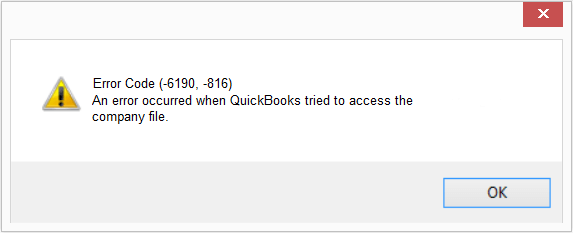
| QuickBooks is unable to open the company file. Another user may have opened it. You should ask the user to switch to multi-user mode so you can both access the company file simultaneously. This file could also be located in a read-only network folder. Error Codes: (6190, 816)” |
The message suggests that you must close the application immediately. Let’s find out how to identify the QuickBooks error 6190 when it occurs.
How to Identify QuickBooks Company File Error 6190-816?
Some common signs can help you identify this error in QuickBooks. Here, we have mentioned some signs that you may notice whenever the error 6190-816 in QuickBooks occurs:
- QuickBooks crashes when opening the company file
- The error message appears immediately after selecting the company file
- Windows becomes slow or unresponsive
- Users cannot access the file in a multi-user environment
- QuickBooks freezes or shuts down repeatedly
Note: System Error Code 1722 typically appears during software installation when Windows Installer fails due to corrupted files or service issues. This error can interrupt program setup or removal. Learn the causes and step-by-step solutions to fix System Error Code 1722 quickly and restore smooth installation.
The Real Reasons Behind QuickBooks Error Code 6190 – 816
The QuickBooks Error Message 6190 – 816 can occur if there is any discrepancy between the transaction log (.TLG) file & the QuickBooks company (.QBW) file. However, several other reasons can also evoke the error. Here, we have mentioned some of the major reasons that restrict you from accessing the company records:
- The error occurs when the transaction log (.TLG) file doesn’t match the company file (.QBW). The Transaction log file helps record transactions made by the company file.
- If the file is stored as “.tlgfile,” it won’t be accessible for conversion to a “company data file.”
- A failed update is another reason a user updates the company file without updating the transaction log file.
- It may occur when multiple users try to access a company file simultaneously in single-user mode.
- You may end up with this error due to damaged QB data.
- Check if you have stored your company files in the read-only network folder.
You may also see:- Fix System Error Code 1722- The RPC Server is unavailable
Troubleshooting Methods To Fix QuickBooks Error Code 6190-816
Before you begin fixing QuickBooks Error Code 6190 – 816, you must log in to your Computer as an administrator. Alternatively, right-click the QuickBooks Desktop icon and select Run as Administrator to run QuickBooks as an administrator. Besides, you must create a backup of your company data to restore it if anything goes wrong.
Note: Before performing the troubleshooting steps, you must update QuickBooks to the latest version. Moreover, you should backup up your company’s data to avoid data loss.
Method 1: Repair Data Damage with QuickBooks File Doctor
Sometimes, you may end up with QuickBooks errors 6190 and 816 in the QB due to network damage or a corrupt company file. It is best to run the QuickBooks File Doctor to repair damage to the company file in such a situation. Here is a quick narrative of the same.
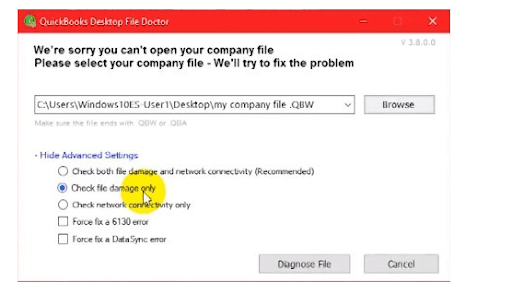
- You can start the process by downloading and installing the “QBFD” from Intuit’s official website.
- Then, you must log in with the “Admin credentials” and run the tool.
- Once done, you will get two options:
- Network connectivity only.
- Both file damage and connectivity.
- Select the second option and identify the damaged file.
- Once done, you will let the file doctor resolve the issue correctly.
- When all of this is done, just enter your administrator password when prompted.
- After this, check if the company files are stored in your workstation or on the server.
If the file opens successfully, the issue was caused by a company file or network damage and has now been resolved using QuickBooks File Doctor.
Method 2: Use the Quick Fix My Program Tool from QuickBooks Tool Hub
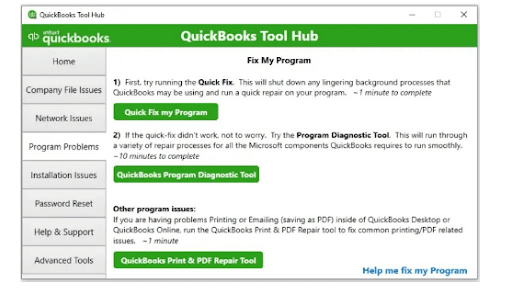
The Quick Fix My Program will help shut down all background processes used by QuickBooks. Further, it will run a quick repair on your program to solve QuickBooks Error 6190 and 816. However, to run Quick Fix My Program, you need to download and install the QuickBooks Tool Hub by following the instructions below:
- Download the QuickBooks Tool Hub.
- Now, open the download folder and double-click on the QuickBooksToolHub.exe file. Follow the on-screen instructions to install QuickBooks Tool Hub.
- Once installed, you have to close QuickBooks and any other open programs.
- Click the desktop icon to open the QB Tool hub and go to the Program Problem tab.
- Refresh the QB desktop application by clicking on QuickBooks Fix My Program. This might take a few minutes.
- Finally, reopen the company file in QuickBooks.
If QuickBooks opens without errors, the issue was due to internal program processes and has been resolved.
Method 3: Rename QuickBooks.ND and .TLG Files
As discussed above, QuickBooks error 6190 can occur due to changes to the .ND and .TLG data files. Thus, you must rename these files to prevent any damaged data from affecting your company files. Make sure to use the system on which you have stored your company file, as it will prevent data loss. Further, follow the steps below to rename the files:
- First, open Windows File Manager and go to the QuickBooks installation directory.
- The QB desktop is installed in C:\Users\Public\Public Documents\Intuit\QuickBooks.
- Now, search for files with the same name as your company file but a different extension, i.e., .ND and .TLG.
- company_file.qbw.nd
- company_file.qbw.tlg
- Right-click the company file and select Rename. Followed by that, add .OLD at the end of the file name.
- Lastly, open QB and check if you can open the company file.
If Intuit QuickBooks errors 6190 and 816 persist after following the troubleshooting steps above, proceed to the next step.
Method 4: Restart the Computer on the Network
At times, the methods listed above may not resolve the issue. In this situation, you can restart both the server and the workstation. Here are the steps for the same:
- First, please navigate to the server where you have hosted the company file, then restart it. Further, you must restart all the workstations connected to the network.
- Now, open QB on the server and run it on the Workstation.
There might be a possibility that it doesn’t serve your purpose. Therefore, in that case, you can try moving your company file from its original location to the local desktop.
Method 5: Move the Company File to the local System
If a network issue prevents QuickBooks from accessing the company file on the server, move the files to the local system. Ensure to access the file in single-user mode while following this resolution method:
- Copy your company file from its original location to your desktop.
- After that, move it to the workstation you are accessing.
- Lastly, enter the credentials, sign in to the QB desktop, and try accessing the company file.
If the company file opens successfully on the local system, the issue was caused by a network or hosting problem and should now be resolved.
Method 6: Check the single-mode user
This is yet again an easy-to-understand thing and an executable process. The single-mode user check has only a few small tasks. Here is how the solution can be executed:
- First, you have to restart the system.
- Next, copy all the data files to your desktop. Or you can copy the file to any location other than its source location.
- After that, you must copy the data file to its original location.
- Now, you just have to punch in the credentials to re-sign in to QuickBooks.
Single-user mode resets allow proper file access and eliminate any lingering user-mode conflicts.
Method 7: You can update the QB software as well as the backup files
Another straightforward and exciting way to fix this problem is to update the software with backup files.
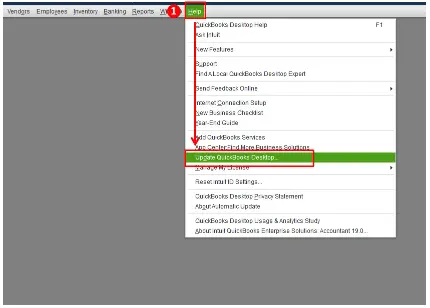
- Firstly, update your QuickBooks Desktop.
- Navigate to the Help menu and then click on the menu bar.
- After that, you must select the “Update QuickBooks Desktop “option from the list.
- Navigate to Options and click the Mark All checkbox.
- Then choose the “Save” option and then the “Update tab.”
- Just select the “Get Updates” option, then wait for the process to complete.
- When done, just restart your system and open QuickBooks.
- Check whether the problem persists.
QuickBooks and back files update to the latest version, effectively fixing errors caused by outdated software.
Note: QuickBooks Error 5502 occurs when there is a synchronization issue between QuickBooks Desktop and Intuit servers, often linked to payroll or account updates. It may appear due to incorrect login credentials or damaged company files. Learn how to resolve QuickBooks Error 5502 with simple troubleshooting steps to restore smooth connectivity.
Method 8: Repair Your Company File Using Rebuild Data Utility
It can be risky to manually repair your company file; therefore, we recommend saving a copy and creating a backup.
- Click on the File menu and move your cursor above Utilities
- Choose Verify Data and run the scan for data issues
- Now, click Expand All to see all the problems on the verify results screen.
- Once you see the error, click the See Online Article option to learn how to fix it.
- If QuickBooks detects issues with the company file, run the rebuild utility to resolve them.
- Navigate to File> Utilities, then select Rebuild Now.
If the rebuild access completes successfully and the file opens normally, the company file damage has been fixed.
Method 9: User QuickBooks Database Server Manager
If your company file is accessed in multi-user mode, QuickBooks Database Server Manager is essential for maintaining a stable network connection.
- Open QuickBooks Tool Hub on the server system
- Navigate to Network Issues
- Launch QuickBooks Database Server Manager
- Click Browse and select the folder where your company file (.QBW) is stored
- Select Start Scan to repair network permission and open required firewall ports
This process refreshes QuickBooks network settings, resolves hosting conflicts, and ensures seamless communication between the server and connected workstations.
Conclusion
Most probably, our detailed troubleshooting guide has helped you fix QuickBooks errors 6190 and 816. If the issue persists and prevents you from opening the company file, it is better to have a technical expert handle it. Contact our team at the Asquare Cloud Hosting. We are available 24/7 to help you fix any QB-related issues in real-time.
Frequently Asked Questions (FAQs)
What is QuickBooks error code 6190?
QuickBooks error code 6190 816 is a company file error that results from issues in the application, company file, network, etc.
How do I resolve the QuickBooks company file Error?
One can resolve the company file error by repairing the QuickBooks application or the company file using the QB File Doctor Tool.
Can QuickBooks Error 6190 lead to data loss?
QuickBooks error 6190 is related to the company file and may indicate it is corrupt. Therefore, we recommend resolving the issue promptly to prevent data loss.
Why does QuickBooks error 6190 occur in multi-user mode?
This error occurs when multiple users try to access the same company file while one or more systems are in single-user mode, resulting in a file-access conflict.
Can a damaged .TLG or .ND file cause error 6190?
Yes, corruption or discrepancies in the .TLG or .ND files can trigger QuickBooks error 6190 and prevent access to the company file.

Oriana Zabell, a professional cloud engineer, has over three years of experience in desktop, online QuickBooks support and troubleshooting. She is currently working as a cloud hosting consultant with Asquare Cloud Hosting. She loves to read and write about the latest technologies such as cloud computing, AI, DaaS, small businesses, manufacturing. When not writing, she is either reading novels or is indulged in a debate with movie fanatics.