
Last Updated on June 18, 2026
QuickBooks Tool Hub Often, you would run into various kinds of errors in QuickBooks Desktop, such as company file errors of the 6XXX series or multi-user mode errors of the HX0X series.
Errors and technical glitches are not something new to QuickBooks, and that’s why Intuit crafted multiple tools to resolve them. These tools have been in the industry for years, and QB Tool Hub (1.6.0.8) brings them together into one application.
In this blog, we will show you how to download QuickBooks Tool Hub 1.6.0.8, the most recent version, and install it on your computer. If you don’t have the Tool Hub installed on your computer or haven’t updated it for too long, this blog is a must-read. However, before we dive right into that, let us briefly discuss what QuickBooks Tool Hub is.
What is QuickBooks Tool Hub?
The QuickBooks Tool Hub is a utility that combines numerous features—essentially a central hub—where you can find tools to resolve QuickBooks Desktop issues. These tools can help you fix issues with your company file, network connectivity, program performance, installation, and printing.
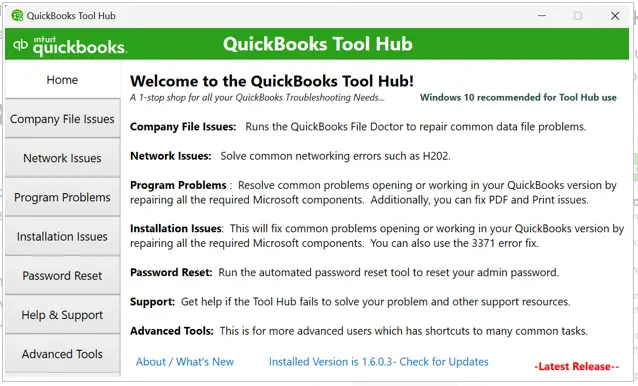
Undoubtedly, the Tool Hub is a software you must keep installed on the system. Moreover, outdated software is less efficient in resolving QB errors, so you must periodically update your QuickBooks Tool Hub to the latest version.
Advantages of using QuickBooks Tool Hub software
QuickBooks Tool Hub refers to an integrated tool used for solving most problems associated with the software by performing actions within one application. Instead of looking for separate applications for resolving various issues with QuickBooks desktop, users can solve them by using one central utility.
Some of the advantages of using QuickBooks Tool Hub include:
- Saves Time: Quick access to many different tools through one software.
- Effective Troubleshooting: Anyone can solve problems easily, even if he/she is not familiar with technology.
- Increases Program Efficiency: Helps in fixing broken program files and other performance issues.
- Company File Repair: Contains File Doctor and Quick Fix My File to solve any company file-related issue.
- Multi-User Mode Error Fixing: Solves any problem related to networks and hosting that stops users from accessing company files.
- Installation Errors Fixing: Helps to perform diagnostic and fix installation issues of QuickBooks software.
- Printing and PDF Fixes: Helps to solve issues such as printing of checks, reports, invoices, and other forms.
- Password Resetting: Helps users who forget their passwords through resetting features.
Maintaining an updated version of QuickBooks Tool Hub helps in solving any technical problem efficiently.
System Requirements for QuickBooks Tool Hub
Before downloading and installing QuickBooks Tool Hub, ensure your computer meets the minimum system requirements.
| Requirement | Detail |
| Operating System | Windows 10, Windows 11, Windows Server editions |
| Processor | 1 GHz or faster |
| RAM | Minimum 4 GB (8 GB recommended) |
| Disk Space | At least 250 MB of free storage |
| Internet Connection | Required for downloading updates and certain repair tools |
| .NET Framework | Microsoft .NET Framework 4.8 or later |
| Additional Components | Microsoft Visual C++ Redistributable (2015–2022) |
| QuickBooks Version | Compatible with supported versions of QuickBooks Desktop |
How to Download & Install the Latest Version of QuickBooks Tool Hub
It is not quite difficult to download QuickBooks Tool Hub to your computer and install it. In fact the steps are pretty similar to how you would install any software on your Windows computer. Let us walk you through it.
Note: QuickBooks Desktop Tool Hub is only available for Windows operating systems and unavailable for other operating systems like MacOS and Linux.
(i) Download QuickBooks Desktop Tool Hub 1.6.0.8
To install QuickBooks Tool Hub on your computer, you first need to download the QuickBooksToolHub.exe, which is the setup file.
However, if you cannot download QuickBooks Tool Hub in windows 11, try a different browser. For detailed help with issues when downloading or installing QB Tool Hub, scroll down.
(ii) Install QuickBooks Tool Hub on Your Computer
Now that you have downloaded the QuickBooksToolHub.exe file to your computer, you will need to run it to launch the installation.
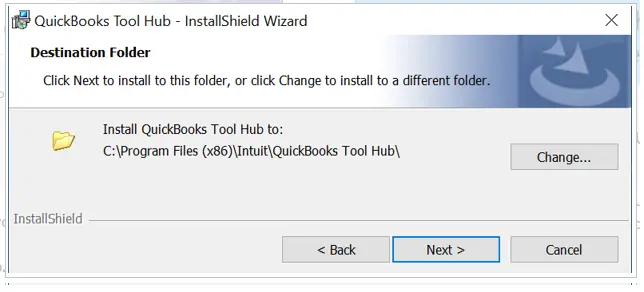
- Go to the Downloads section in your browser or the directory where you have downloaded the setup file.
- Click on the QuickBooksToolHub.exe file twice to begin the installation.
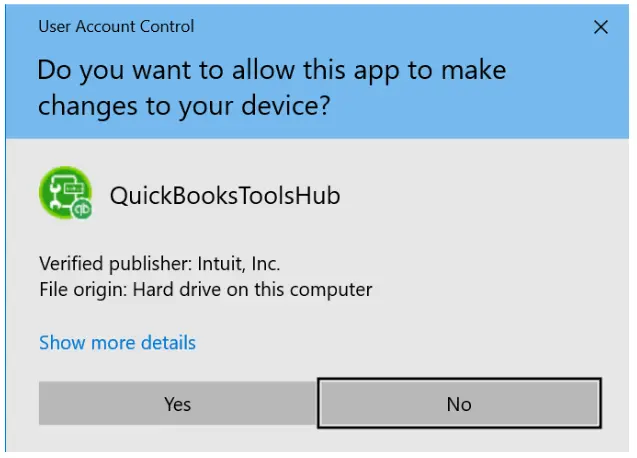
- If Windows asks you whether you want to allow QuickBooks Tool Hub windows 11 to make changes to the computer, choose Yes.
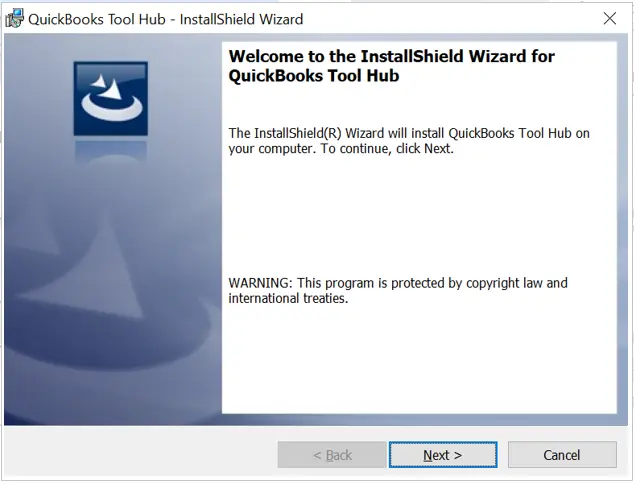
- Now, you will see the QB Tool Hub installation wizard; choose Next.
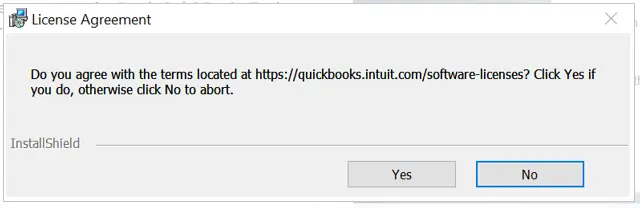
- When asked to confirm the license agreement for Intuit QuickBooks Tool Hub, choose Yes. The No will abort the installation.
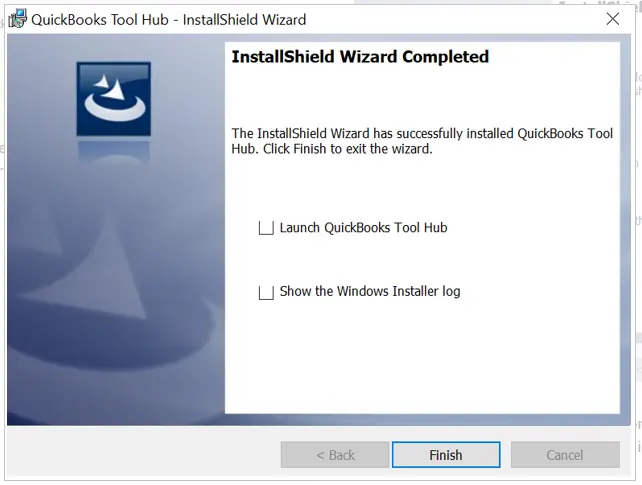
- Now, go ahead with the on-screen instructions. When the Tool Hub is installed, you will see a message in the installation window telling you the same. Choose Finish.
This will successfully install Intuit Tool Hub on your computer. However, if you find an issue when installing QB Tool Hub, move to the next section to learn how to resolve it.
QuickBooksToolHub.exe Has Been Blocked: Can’t Install Tool Hub
Sometimes, while downloading QuickBooks Tool Hub, you might get an error message stating QuickBooksToolHub.exe has been blocked because it can harm your device. When this happens, you can try to download the Tool Hub from a different browser. Once you have downloaded the Tool Hub setup file, run it. The Microsoft Defender might show you the following message on the screen:
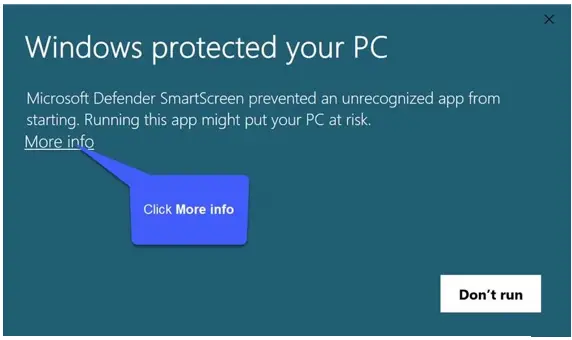
- Choose More Info followed by Run Anyway to successfully install the QB Tool Hub on your system.
- If you still cannot install QuickBooks Tool Hub on your computer, you should contact our expert.
Different Tabs in QB Tool Hub for Different Types of Issues You Can Fix
Once you have installed QB Tool Hub on your computer, you are set to resolve QuickBooks errors and issues whenever they spawn.
Let us walk you through the various QuickBooks Tool Hub tabs and tools. These tabs are named after the purpose for which they were designed. For example, the installation issues tab will help repair damaged installations and fix related errors.
1. Home
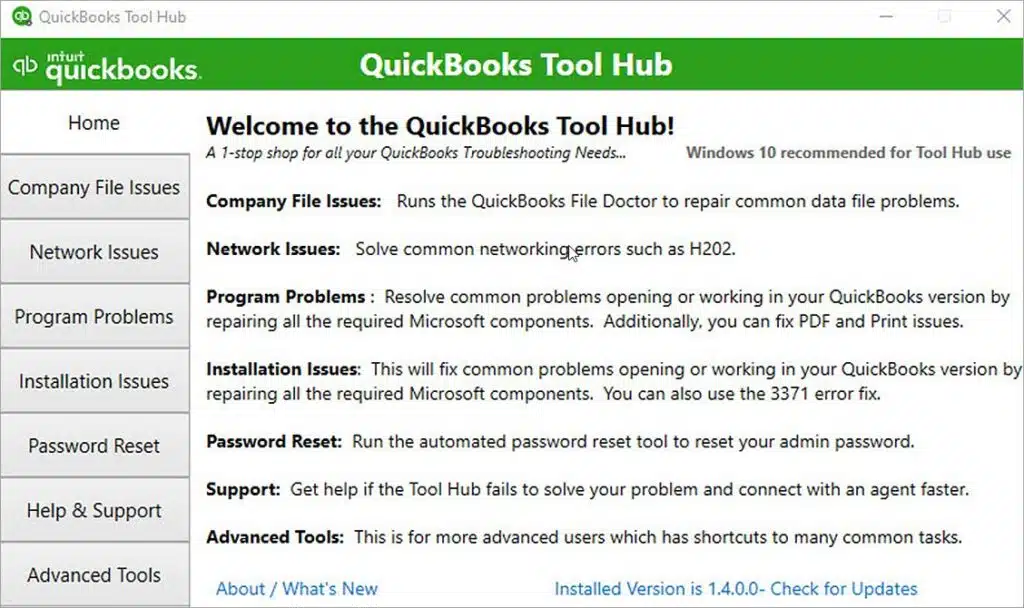
When you double-click the QB Tool Hub icon to launch it, the application will open on the Home screen. The Home screen or tab will enlist all kinds of issues you can fix, like an overview. At the bottom, you will see the About and version information. Click on the version information to check for updates if you haven’t updated QuickBooks Desktop Tool Hub for long.
2. Company File Issues
This is the tab that contains tools to resolve QuickBooks company file issues, such as company file errors with code 6XXX.
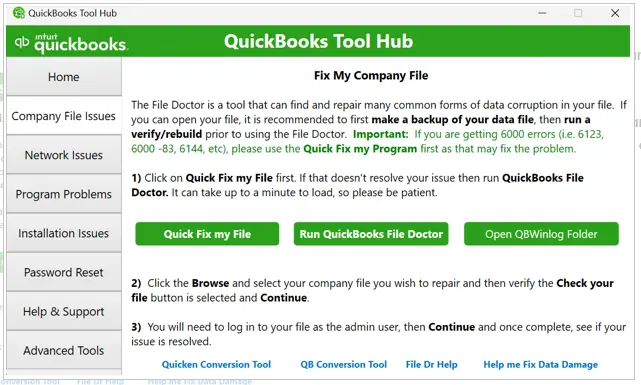
Here is a list of tools you will find in this tab:
- Quick Fix my File
- QuickBooks File Doctor
- Open QBWinlog Folder
If you want to quickly repair the company file or the network, run QuickBooks File Doctor. The QBWinlog folder records the program messages. Often, you would need to open the QBWinlog folder to review the error messages and resolve an issue.
3. Network Issues
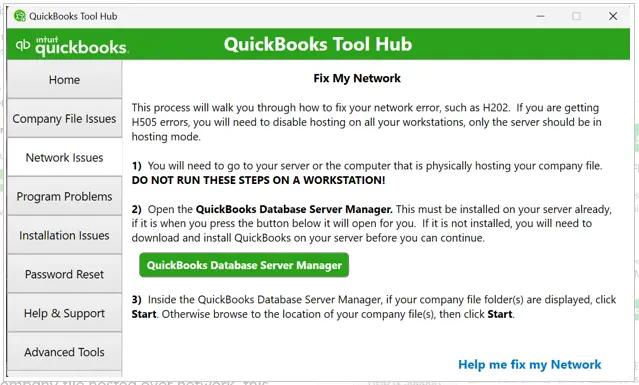
As the name suggests, this tab helps the users resolve network issues in QuickBooks. If you find an issue while working on a company file hosted over network, this is the tab to come to.
It has the option to launch QuickBooks Database Server Manager, which is very helpful, especially when you find multi-user mode not working or run into error code H202 when switching to multi-user mode.
4. Program Problems
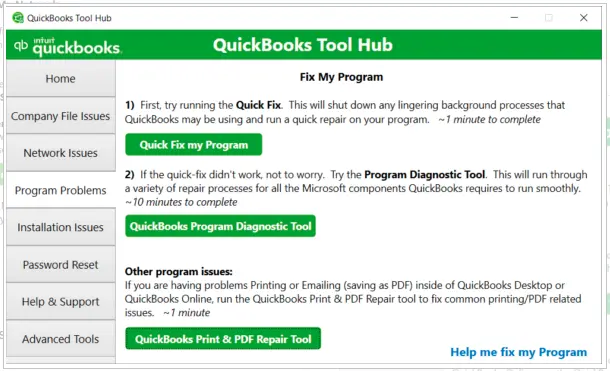
Often, the QuickBooks program gets damaged or corrupted and might stop working, freeze, or crash. This is when you need the tools in the Program Problems tab.
QuickBooks Program Diagnostic Tool helps you repair the software. Whenever you find issues with printing, opening, or emailing PDFs in QuickBooks, use the QuickBooks Print & PDF Repair Tool.
5. Installation Issues
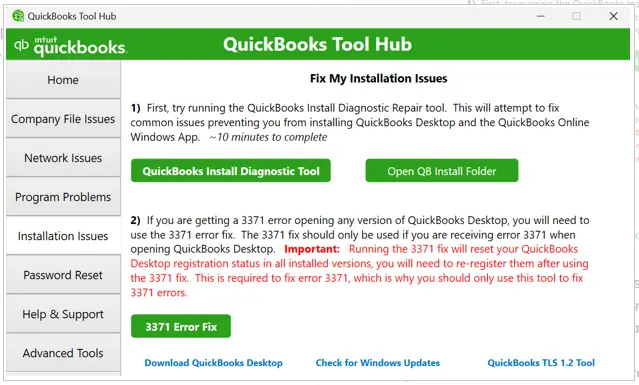
QuickBooks might not run properly, crash often, or run into various kinds of errors if the installation is damaged or incomplete, or Windows registry and Microsoft components are missing or damaged. You might also run into QuickBooks installation error, if there are such issues with Windows registry or Microsoft components.
If you run into such problems, launch QuickBooks Install Diagnostic Tool. This will resolve the damaged tools and components. However, if it is QuickBooks error 3371 that you are struggling with, this tab has a dedicated tool to help you resolve the same.
6. Password Reset
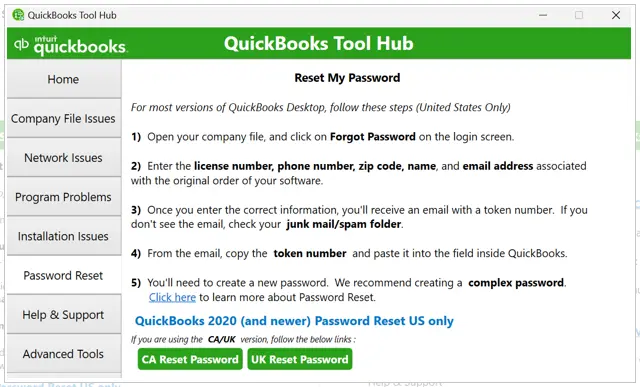
This is the section that will help you reset your QuickBooks password if you have forgotten it. However, for that, you will need details like the license number, email address, phone number, ZIP code, etc.
7. Help & Support
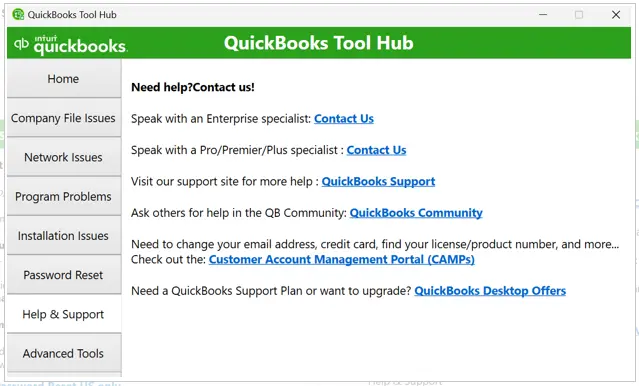
If you need help, you can open this tab and utilize various resources here. Moreover, if you need live assistance, you can call an expert.
8. Advanced Tools
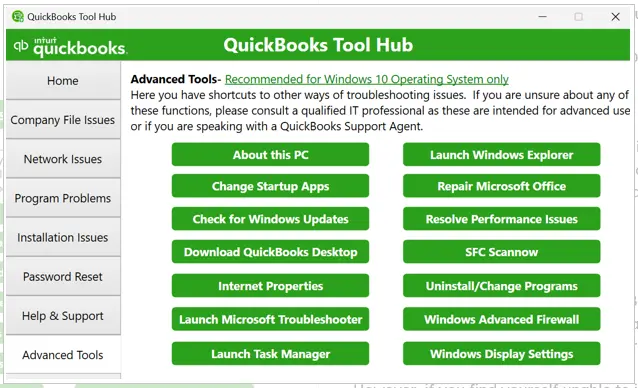
The last tab contains advanced tools to help you with miscellaneous performance and installation issues in QuickBooks. For instance, there is a Download QuickBooks Desktop option that you can use to get QuickBooks Desktop if you have uninstalled it.
Note: If you are installing QuickBooks Desktop for the first time, you will need QuickBooks Conversion Tool to migrate the data from your older accounting software.
If you are struggling with performance issues, this can be because of too many apps running in the background or set to launch at the startup. You can open Startup apps and select the only applications that you require.
Common Errors Resolved by QuickBooks Tool Hub
QuickBooks Tool Hub is specifically meant for solving many kinds of errors related to the QuickBooks desktop application. Users just have to find their error on the appropriate tab and perform the required repair through that tool.
| QuickBooks Error H202 | QuickBooks Error 3371 | Missing Windows components |
| Data file corruption issues | Network connectivity issues | Installation-related failures |
| Multi-user mode not working | QuickBooks Error 6123 | Emailing PDF form issues |
| Slow program performance | Database Server Manager problems | Print preview not working |
| QuickBooks Error 6000 Series | Damaged or inaccessible company files | Unable to print invoices or checks |
| QuickBooks freezes or stops responding | QuickBooks keeps crashing | Forgotten admin password |
Conclusion
This was all on how to download QuickBooks Tool Hub and install it on your computer. Once you are done installing the Tool Hub, you will be able to use various tools to resolve common errors. However, if you find yourself unable to install the Tool Hub or need assistance with an issue, dial +1(855)-510-6487 and connect with Asquare Cloud Hosting!
Frequently Asked Questions (FAQ’s)
How do I get QuickBooks Tool Hub?
To install QuickBooks Tool Hub on your computer, you first need to download the setup file, QuickBooksToolHub.exe. Once done, you can launch the installation by double-clicking the setup file and then follow the instructions on the screen to finish installing QB Tool Hub on your computer.
Why won’t my QuickBooks Tool Hub open?
QB Tool Hub might take a while to open the computer when you double-click the icon. You can search for the Tool Hub in the search bar beside the Start icon on the Taskbar in Windows. If you can’t open QuickBooks Tool Hub at all, you should consider reinstalling it.
Where is the toolbar in QuickBooks?
The tools in QuickBooks Desktop are available in a separate software named QuickBooks Tool Hub. Therefore, if you are running into issues and errors while using QuickBooks, you can utilize the tools in the Tool Hub.
Do I need to uninstall the old version of Tool Hub before installing 1.6.0.8?
It is highly recommended. To ensure a clean update:
1. Go to Control Panel > Programs and Features.
2. Uninstall the existing QuickBooks Tool Hub.
3. Download the new version and install it fresh to avoid file corruption.
Why does my antivirus software flag the Tool Hub as a threat?
Because the Tool Hub makes changes to your Windows Registry and program files to “repair” them, some strict antivirus programs flag it as suspicious. You may need to temporarily disable your antivirus or add an “Exception” for QuickBooksToolHub.exe during the installation process.
What should I do if the “Quick Fix my Program” hangs or freezes?
If the tool becomes unresponsive:
1. Open Task Manager (Ctrl+Shift+Esc).
2. End any processes named QBW32.exe, QBDBMgr.exe, or QuickBooksToolHub.exe.
3. Navigate to the Advanced Tools tab in the Tool Hub and select QuickBooks Refresher. This force-terminates hidden background services that a standard “Quick Fix” might miss.
Why do I see “Microsoft Desktop Runtime” errors when opening Tool Hub?
QuickBooks Tool Hub requires specific Windows components to run. If you see a runtime error:
1. Ensure you have Microsoft .NET Framework 4.8 installed.
2. Ensure Microsoft Visual C++ Redistributable 2015-2022 is present on your system.
3. You can often find shortcuts to update these in the Advanced Tools tab.
What should I do if QuickBooks still crashes after using Tool Hub?
If QuickBooks continues to crash:
1. Ensure your QuickBooks Desktop version is updated.
2. Verify that Windows updates are installed.
3. Run a manual repair of the company file using QuickBooks File Doctor.
4. Contact QuickBooks support if the issue persists.
What should I do if I accidentally deleted Tool Hub?
Simply download the latest version (1.6.0.8) from the official QuickBooks website and reinstall. Remember to uninstall any incomplete or older versions before reinstalling to avoid conflicts.

Kate is a certified public accountant (CPA) with expertise in various accounting software. She is technically inclined and finds passion in helping businesses and self-employed people carry out bookkeeping, payroll, and taxation without worrying about errors. Every once in a while, Kate loves to travel to far-off places and relax in the lap of nature.